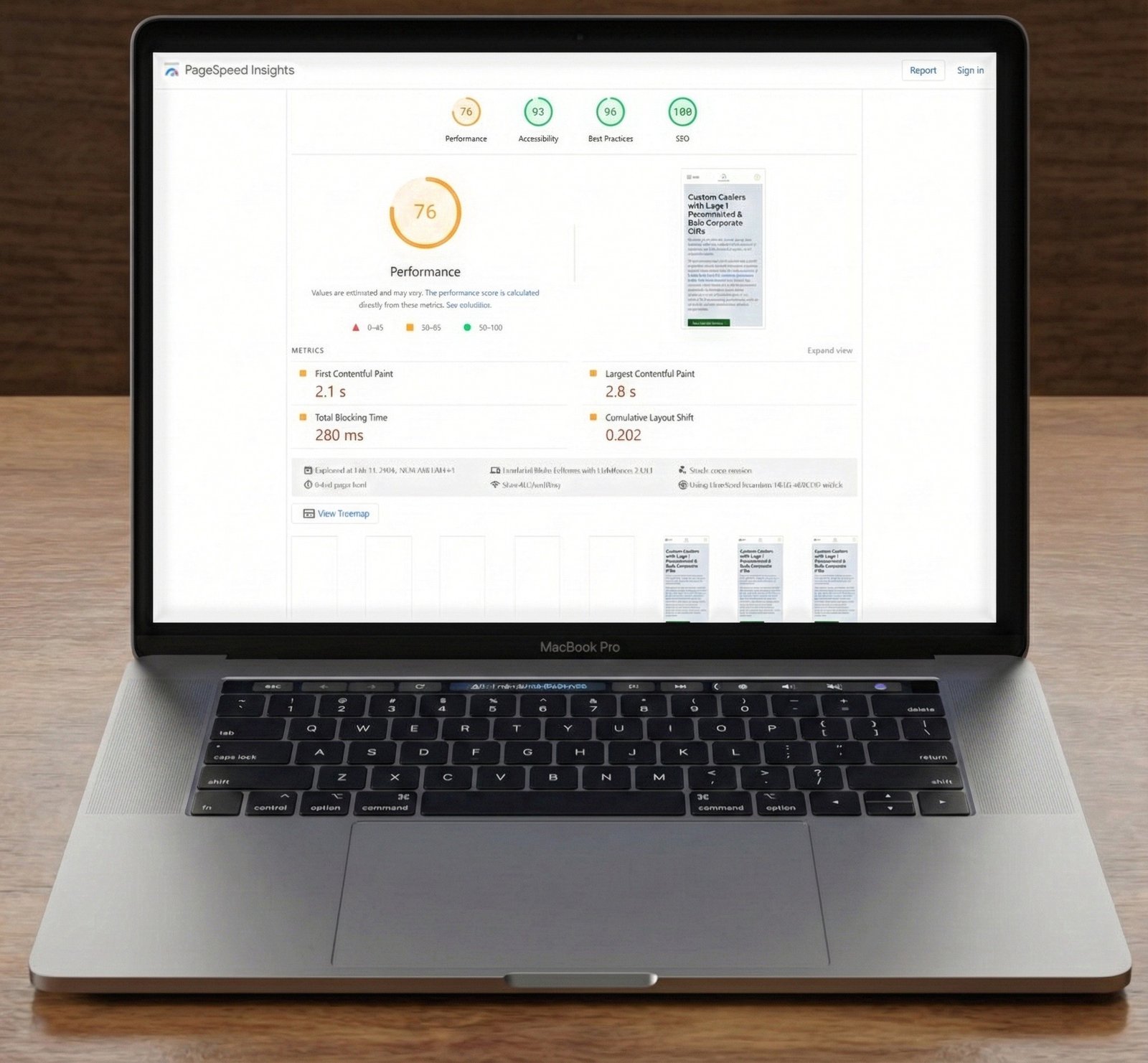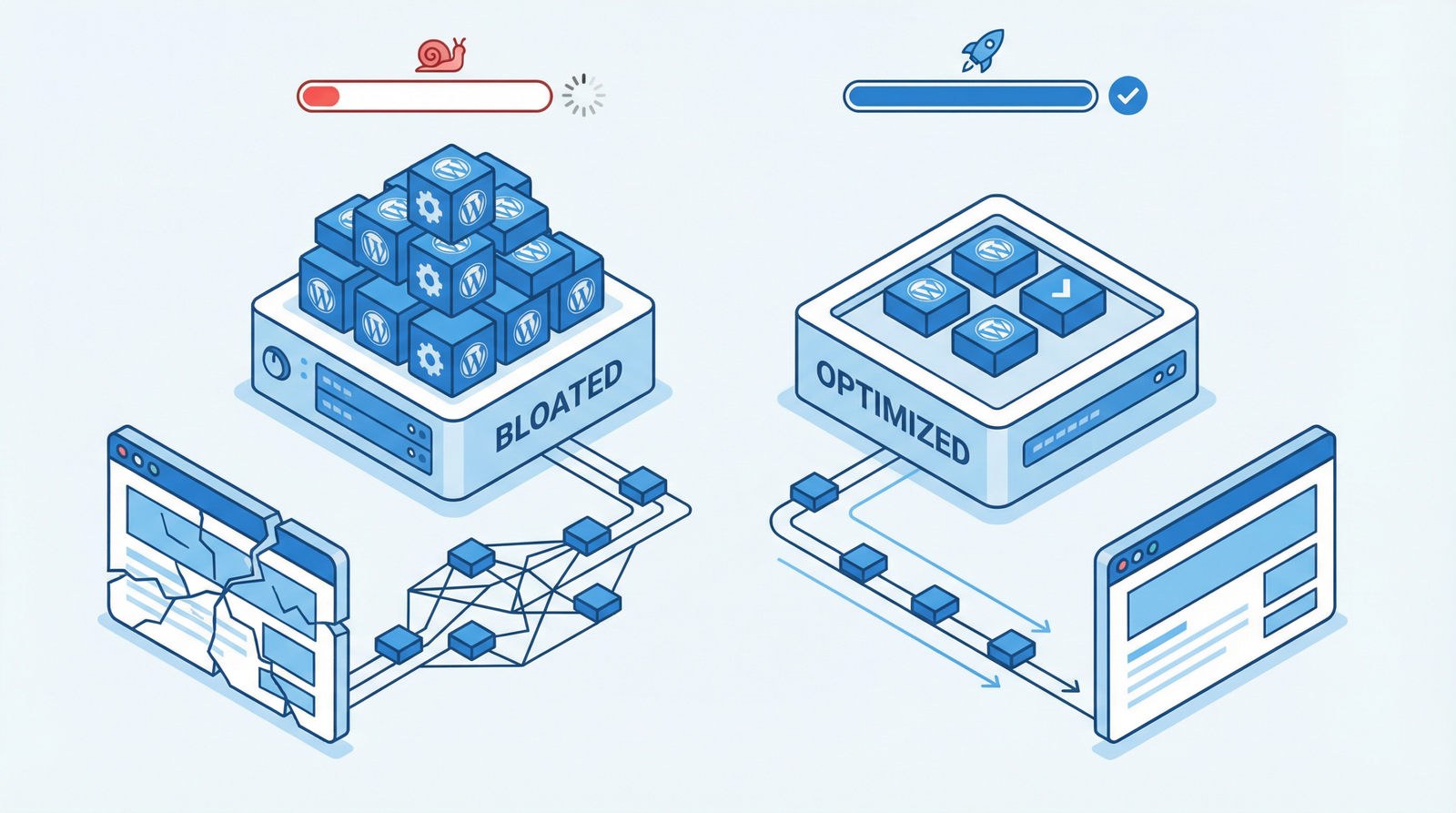
“Too many plugins” is the standard diagnosis for a slow WordPress site, and it is almost right in a way that sends people down the wrong path. The number is not the problem. A site with forty well-behaved plugins can be faster than one with eight badly-behaved ones.

Advertisement. We earn a commission if you sign up through this link, at no extra cost to you.
What matters is what each one does on every page load: how many database queries it runs, how much CSS and JavaScript it enqueues everywhere rather than where it is needed, and whether it phones home during the request. That is measurable, and once you measure it the list of things to remove usually turns out to be short and specific.
Measure before you delete
Query Monitor is the tool. Install it, load a page as an administrator, and the admin bar shows you the truth: total queries, time spent in the database, PHP memory used, HTTP requests made during the load, and — the useful part — which plugin is responsible for each.
What to look for:
- Query count. Under 50 is healthy. Over 150 means something is looping. Over 400 means a plugin is querying inside a loop, which is a bug rather than a configuration issue.
- Slow queries. Query Monitor flags anything unusually slow and names the caller. One badly indexed query can outweigh everything else on the page.
- HTTP API calls during page load. This is the quiet killer. A plugin checking a license server or fetching a feed while the visitor waits adds however long that server takes to respond. It should be on a scheduled task, not on the request path.
Then open the Coverage panel in Chrome DevTools and look at how much of each loaded CSS and JavaScript file was actually used. A contact form plugin loading its stylesheet and script on all 200 pages when the form appears on one is the classic finding, and it is very common.
The categories worth removing
Plugins doing something you no longer use. The slider from a design two redesigns ago, the social sharing bar nobody clicks, the related-posts plugin duplicating what the theme does. These are pure cost.
Plugins doing one small thing. A plugin whose entire function is adding a snippet to the head is a plugin’s worth of overhead for three lines of code. Consolidate these into one snippet manager.
Overlapping plugins. Two caching plugins, two SEO plugins, three security plugins. These do not add up — they conflict, and the conflicts produce the strangest bugs on any WordPress site.
Anything abandoned. Not updated in two years is a security decision as much as a performance one.
Deactivated is not removed
A deactivated plugin does not run, so it costs you nothing at load time. It does still sit on disk, unpatched, with its files reachable by URL. Plenty of WordPress compromises have come through a vulnerability in a plugin the owner had deactivated and forgotten.
Same for themes. Keep the active theme, keep its parent if it is a child theme, keep one default theme as a fallback for debugging. Delete the rest.
This is housekeeping rather than performance, and it takes five minutes.
Page builders
Elementor, Divi and WPBakery all carry a real cost: their own CSS and JavaScript frameworks, and markup that nests several layers of wrapper divs around every element. That cost is genuine and it is also frequently exaggerated by people selling an alternative.
The honest position: a builder-built site can perform perfectly well, and a builder-built site left at default settings usually does not.
What actually helps, in order:
Turn on the leaner markup option. Elementor’s Optimized DOM Output and Optimized Markup settings remove wrapper elements. Free, and it applies everywhere.
Load only the widgets you use. Both Elementor and its add-on packs let you disable unused widgets and features individually. An add-on pack registering eighty widgets to use four is a large amount of dead weight.
Turn off the icon and font libraries you do not need. Font Awesome and Google Fonts are usually loaded wholesale by default.
Do not use a builder for simple pages. A blog post does not need a builder. Reserve it for layouts that genuinely need one.
Switching builders, or moving to blocks, is a rebuild — weeks of work with real risk. It is occasionally the right answer for a site that has outgrown its foundation, and it is very rarely the right answer to “my LCP is 3.2 seconds”. Exhaust the settings first.
The default WordPress weight
A stock install loads a few things most sites do not need.
The block library stylesheet — around 30 KB of CSS for Gutenberg blocks. If you build entirely with a page builder and use no blocks at all, dequeuing it is a legitimate saving. If you use even one block, removing it breaks that block’s styling, which is how this well-known tip produces a broken page.
The emoji script — a small script and its stylesheet, loaded on every page to convert emoji characters for browsers that stopped needing it years ago. Safe to remove.
Dashicons on the front end — the admin icon font, sometimes loaded publicly by a theme.
jQuery Migrate — a compatibility shim for code written against old jQuery. Worth being accurate about this one: it is roughly 10 KB and its performance impact is small. Guides that present it as a major drag overstate it. The real reason to check whether you need it is what its presence tells you — if removing it breaks something, you have code relying on jQuery patterns removed years ago, and that is a maintenance problem rather than a speed one.
Perfmatters, Asset CleanUp and most caching plugins expose all of these as toggles. Turn them off one at a time and check the site after each, because the difference between “removed 30 KB” and “broke the layout” is one checkbox.
Conditional loading: the biggest available win
This is where the real gains are, and it is the step most sites skip.
Most plugin assets are enqueued globally because that is the safe default for a plugin author who cannot know where you will use their shortcode. Your contact form CSS loads on every post. Your gallery script loads on pages with no gallery. Multiply by fifteen plugins and the front page is downloading the combined requirements of the entire site.
Asset CleanUp and Perfmatters both let you disable specific scripts and stylesheets per page, per post type, or everywhere except a chosen list. Done in code it is a conditional dequeue:
add_action('wp_enqueue_scripts', function () {
    if (!is_page('contact')) {
        wp_dequeue_style('contact-form-css');
        wp_dequeue_script('contact-form-js');
    }
}, 100);
An hour spent on the ten heaviest assets typically does more for load time than any other single item in this article. Test each page type afterward — this is the one place where an over-enthusiastic change breaks something silently, and the thing it breaks is usually a form.
A sensible order
- Install Query Monitor and look at query count, slow queries and HTTP calls on your homepage and a typical post.
- Delete what you do not use. Plugins and themes, deactivated ones included.
- Resolve overlaps. One caching plugin, one SEO plugin, one security plugin.
- Fix the worst offender Query Monitor named, rather than trimming everything equally.
- Set up conditional asset loading for the ten heaviest files.
- Turn on your builder’s optimization settings and disable unused widgets.
- Remove the default extras — emoji script, unused block CSS — one at a time.
Measure with the same tool on the same URL before and after. “It feels faster” is not a result.
The short version
Plugin count is not the metric; queries, assets and HTTP calls during the request are. Query Monitor tells you which plugin is responsible, and it is usually one or two rather than all of them. Delete what you do not use, load assets only where they are needed, turn on your builder’s optimization settings, and treat jQuery Migrate as a code-quality signal rather than a speed problem.
Working through this list on your own site and would rather not? That is what an Expert Web Audit is for.

Advertisement. We earn a commission if you sign up through this link, at no extra cost to you.