Unleashing WordPress Speed: Taming Unused Gutenberg Assets in 2025 & Beyond
In the ever-evolving landscape of web performance, every kilobyte and millisecond counts. For WordPress users, a common culprit silently sabotaging site speed has been the loading of Block Editor (Gutenberg) styles and scripts, even when they\’re not actively used on a page. While Gutenberg has become the default WordPress editor, its pervasive asset loading can significantly impact your site\’s performance, especially as we move into 2025 and 2026.
The Hidden Performance Drain: Unused Gutenberg Assets

WordPress, by default, enqueues CSS and JavaScript files related to the Block Editor across your entire website. This happens regardless of whether you\’re using Gutenberg on a particular page or even if you\’ve opted for the Classic Editor. This \’always-on\’ approach, while convenient for some, introduces unnecessary overhead to every single page load.
Why does this matter for your site?
- Increased Page Size: Unnecessary CSS and JavaScript files directly inflate your total page size. The block library CSS alone can add 50-100KB, and the associated JavaScript further compounds this, leading to slower download times.
- Reduced Load Speed: Larger page sizes translate to longer loading times. This is particularly detrimental for users on slower mobile connections, where every extra byte can significantly degrade the user experience.
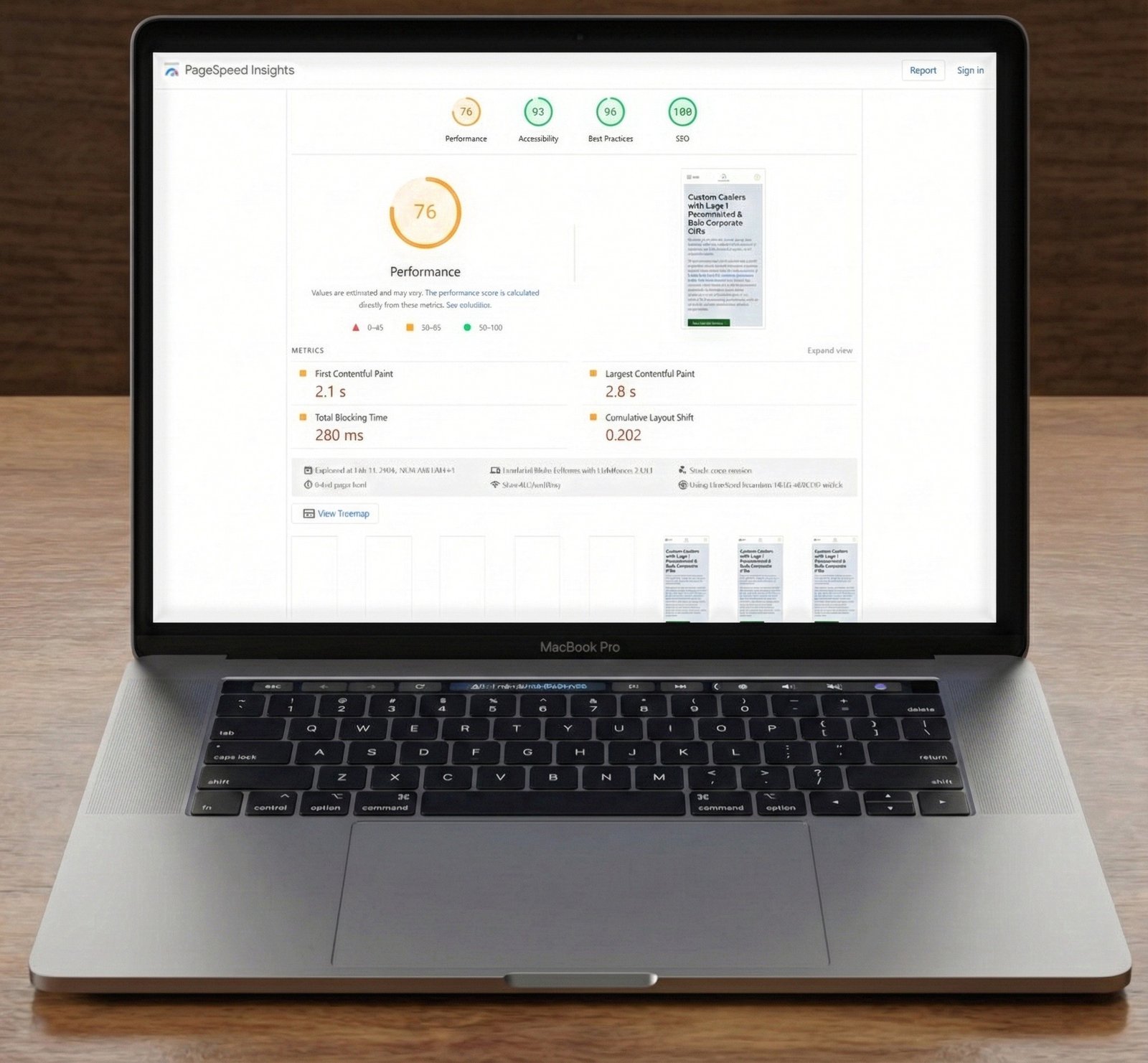
- Impact on Core Web Vitals: Slower loading times negatively affect crucial Core Web Vitals metrics like Largest Contentful Paint (LCP) and First Input Delay (FID), which are critical for SEO and user satisfaction.
Is Your Site Affected? How to Check
Identifying if your WordPress site is loading unused Gutenberg assets is straightforward:
- Inspect Page Source: Open any public page on your website and view its source code (typically Ctrl+U or right-click → “View Page Source”).
- Look for Block Library Styles: Search for files like
/wp-includes/css/dist/block-library/style.min.cssorwp-block-librarywithin the HTML head section. - Developer Tools Network Tab: Open your browser\’s Developer Tools (F12 or right-click → “Inspect”), navigate to the \’Network\’ tab, and reload the page. Filter by CSS and JS to identify any Gutenberg-related files being loaded.
The 2025/2026 Imperative: Optimizing for a Block-First World
With Gutenberg firmly established as the default editor, and its capabilities continually expanding, the need to manage its assets efficiently is more critical than ever. The updates for 2025/2026 emphasize that this isn\’t just a niche optimization; it\’s a fundamental aspect of modern WordPress performance. Ignoring this can lead to a significant competitive disadvantage in search rankings and user experience.
Actionable Solutions: Reclaiming Your Site\’s Speed
Fortunately, there are effective ways to prevent unused Gutenberg assets from slowing down your site:
Method 1: Code Snippets for Your Theme\’s functions.php
This method allows for precise control and is ideal for developers or those comfortable with code. Add the following to your theme\’s functions.php file (or preferably, a child theme\’s functions.php or a custom plugin to ensure updates don\’t overwrite your changes):
function expert_web_audit_remove_wp_block_library_css() {
    wp_dequeue_style(\'wp-block-library\');
    wp_dequeue_style(\'wp-block-library-theme\');
    wp_dequeue_style(\'wc-blocks-style\'); // For WooCommerce blocks
    wp_dequeue_style(\'global-styles\'); // Global styles introduced with newer WordPress versions
    wp_dequeue_style(\'classic-theme-styles\'); // If using a classic theme
}
add_action(\'wp_enqueue_scripts\', \'expert_web_audit_remove_wp_block_library_css\', 100);

// To also remove from the admin bar (optional, for logged-in users)
add_action(\'wp_enqueue_scripts\', function() {
    wp_dequeue_style(\'wp-block-library\');
}, 100);

// For complete Gutenberg editor removal (use with caution, only if you never use the block editor)
add_filter(\'use_block_editor_for_post\', \'__return_false\', 10);
add_filter(\'use_block_editor_for_post_type\', \'__return_false\', 10);

// To remove Gutenberg CSS and JS completely (if editor is disabled)
function expert_web_audit_remove_gutenberg_assets() {
    wp_dequeue_style(\'wp-block-library\');
    wp_dequeue_style(\'wp-block-library-theme\');
    wp_deregister_script(\'wp-block-library\');
}
add_action(\'wp_enqueue_scripts\', \'expert_web_audit_remove_gutenberg_assets\', 100);
Important: The complete Gutenberg removal code should only be used if you are absolutely certain you will not use the block editor for any content. For most modern WordPress sites, selectively dequeuing styles is the preferred approach.
Method 2: Utilize a Performance Plugin (e.g., Asset CleanUp)
For those less comfortable with code, plugins like Asset CleanUp: Page Speed Booster offer a user-friendly interface to manage assets. These plugins allow you to:
- Scan and identify all loaded assets on a page.
- Disable specific CSS and JavaScript files on a per-page, per-post, or sitewide basis.
- Unload Gutenberg-related assets only where they are not needed, providing granular control without coding.
Conclusion: A Faster WordPress is Within Reach
Optimizing your WordPress site by addressing unused Gutenberg assets is a vital step towards achieving superior web performance in 2025 and beyond. By implementing these solutions, you\’ll reduce page size, accelerate load times, improve Core Web Vitals, and ultimately provide a faster, more enjoyable experience for your visitors. Don\’t let unnecessary code hold your website back – take control of your assets today!