Long-form content is a cornerstone of effective SEO and content marketing strategies. From in-depth guides and comprehensive blog posts to detailed product descriptions, these extensive pieces offer immense value to users and signal authority to search engines. However, the very length that makes them valuable can also become their biggest downfall if not properly structured. Imagine landing on a 5,000-word article, eager to find a specific piece of information, only to be met with an endless scroll. Frustrating, isn’t it? This is the silent killer of user experience and SEO: long-form content without anchor navigation.
What’s the Problem?

The core issue is simple: when your extensive content lacks a clear table of contents or internal anchor links, users are forced to manually scroll through vast amounts of text to find what they need. This isn’t just an inconvenience; it’s a significant barrier to information access. In today’s fast-paced digital world, users expect immediate gratification and effortless navigation. Without it, they’re likely to abandon your page.
Why Unnavigable Content Hurts Your Site (and Your Users)
The absence of proper navigation in long-form content has a cascading negative effect on both user experience and your site’s performance metrics:
- Increased Bounce Rates: Users who can’t quickly find what they’re looking for will leave your site, artificially inflating your bounce rate. This signals to search engines that your content isn’t relevant or user-friendly, potentially harming your rankings.
- Reduced Time on Page: While long content aims for increased engagement, a lack of navigation can paradoxically reduce the time users spend on your page. They might skim or leave prematurely, missing valuable information.
- Frustrated Users: A poor user experience leads to frustration, which can damage your brand’s reputation and reduce the likelihood of return visits or conversions.
- Missed SEO Opportunities: Search engines, particularly Google, value well-structured content. Anchor navigation is crucial for:
- Featured Snippets: Google often pulls answers directly from well-organized content, and anchor links can help your content qualify for these highly visible snippets.
- Jump Links: For lengthy articles, Google may display
jump links directly in the search results, allowing users to navigate to specific sections of your page. This significantly improves click-through rates (CTR) and user satisfaction.
How to Check if You Have the Problem
Identifying content that needs anchor navigation is straightforward:
- Review Long-Form Content: Systematically go through all content pieces exceeding 1000 words (blog posts, guides, FAQs, product descriptions, etc.).
- Check for Navigation Aids: Does the content have a visible table of contents at the beginning? Are the main headings clickable and do they smoothly scroll to the relevant section?
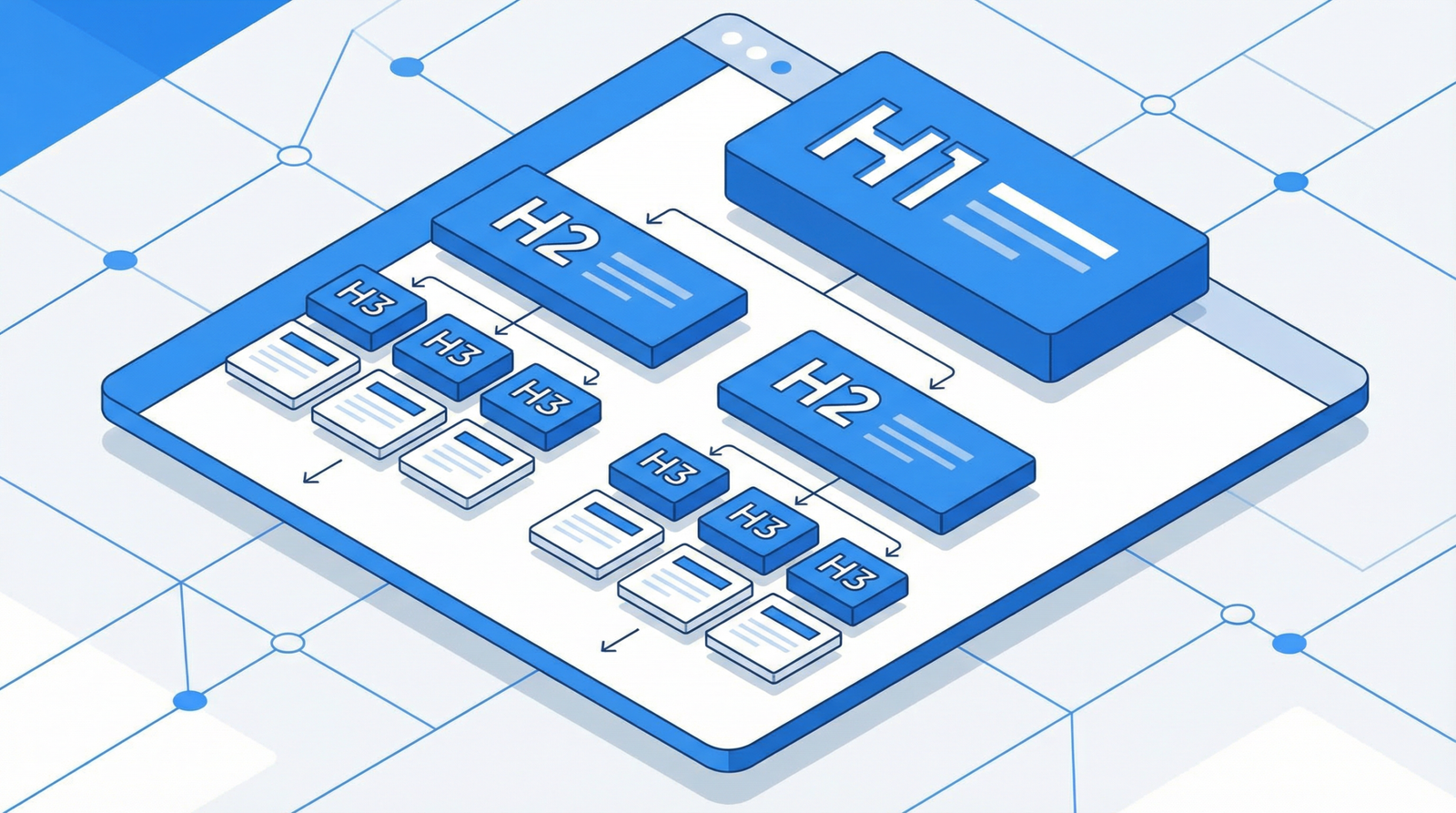
- Inspect Heading Structure: Ensure your headings (H2, H3, H4, etc.) are semantically correct and logically organized. Each heading should ideally have a unique ID attribute for anchor linking.
- User Experience Testing: Conduct a quick usability test. Ask someone unfamiliar with the content to find specific information within a long article. Observe their navigation patterns and any points of frustration.
How to Fix It: Actionable Steps for Enhanced Navigation
Implementing anchor navigation is a critical step towards improving both user experience and SEO. Here are several methods, ranging from simple plugins to custom code implementations:
1. Automatic Table of Contents Generation
For WordPress users, several plugins can automate this process, creating a table of contents based on your post’s headings. This is often the easiest and most efficient solution.
Recommended Plugins (2025/2026 Update):
- Easy Table of Contents: A popular choice for automatic TOC generation, offering good customization options.
- Table of Contents Plus: Provides extensive control over the appearance and placement of your TOC.
- LuckyWP Table of Contents: A lightweight and fast solution, ideal for performance-conscious sites.
Custom Code Implementation (PHP for WordPress):
For those who prefer a more hands-on approach or need specific functionalities, you can implement a custom PHP function in your WordPress theme’s functions.php file. This function will parse your content, identify headings, assign unique IDs, and generate an HTML table of contents.
php
function generate_table_of_contents($content) {
// Only add TOC to long content (e.g., over 1000 words)
if (str_word_count(strip_tags($content)) < 1000) {
return $content;
}
$toc_items = array();
$content = preg_replace_callback(
'/<h([2-6])([^>]*)>(.*?)<\/h[2-6]>/i',
function($matches) use (&$toc_items) {
$level = $matches[1];
$attributes = $matches[2];
$text = strip_tags($matches[3]);
$id = sanitize_title($text); // WordPress function to create a URL-friendly string
// Store for TOC
$toc_items[] = array(
'level' => $level,
'text' => $text,
'id' => $id
);
// Add ID to heading if not already present
if (strpos($attributes, 'id=') === false) {
$attributes .= ' id="' . $id . '"';
}
return '<h' . $level . $attributes . '>' . $matches[3] . '</h' . $level . '>';
},
$content
);
// Generate TOC HTML
$toc_html = '';
if (!empty($toc_items)) {
$toc_html = '<div class="table-of-contents">';
$toc_html .= '<h3>Table of Contents</h3>';
$toc_html .= '<ul class="toc-list">';
foreach ($toc_items as $item) {
$toc_html .= '<li class="toc-level-' . $item['level'] . '">';
$toc_html .= '<a href="#' . $item['id'] . '">' . $item['text'] . '</a>';
$toc_html .= '</li>';
}
$toc_html .= '</ul></div>';
}
// Insert TOC after the first paragraph
$content = preg_replace('/(<\/p>)/', '$1' . $toc_html, $content, 1);
return $content;
}
add_filter('the_content', 'generate_table_of_contents');
2. Smooth Scroll Navigation
Enhance the user experience by adding smooth scrolling to your anchor links. This provides a more pleasant transition when users click on a TOC item.
JavaScript Implementation:
javascript
document.addEventListener('DOMContentLoaded', function() {
document.querySelectorAll('a[href^="#"]').forEach(anchor => {
anchor.addEventListener('click', function (e) {
e.preventDefault();
const target = document.querySelector(this.getAttribute('href'));
if (target) {
target.scrollIntoView({
behavior: 'smooth',
block: 'start'
});
}
});
});
// Add "back to top" functionality for very long pages
const backToTop = document.createElement('button');
backToTop.innerHTML = '↑ Back to Top'; // Up arrow character
backToTop.className = 'back-to-top';
backToTop.style.cssText = `
position: fixed;
bottom: 20px;
right: 20px;
background: #333;
color: white;
border: none;
padding: 10px 15px;
border-radius: 5px;
cursor: pointer;
display: none; /* Hidden by default */
z-index: 1000;
`;
document.body.appendChild(backToTop);
// Show/hide back to top button based on scroll position
window.addEventListener('scroll', function() {
if (window.pageYOffset > 300) { // Show after scrolling 300px
backToTop.style.display = 'block';
} else {
backToTop.style.display = 'none';
}
});
backToTop.addEventListener('click', function() {
window.scrollTo({ top: 0, behavior: 'smooth' });
});
});
3. Reading Progress Indicator
For exceptionally long content, a reading progress indicator can significantly improve user engagement by showing them how far they've progressed. This is a subtle but effective way to combat scroll fatigue.
WordPress Implementation (PHP and JavaScript):
First, add the HTML structure to your header.php or via a function hooked to wp_head:
function add_reading_progress_indicator() {
if (is_single() && str_word_count(get_the_content()) > 1000) { // Only for single posts over 1000 words
echo '<div class="reading-progress"><div class="reading-progress-bar"></div></div>';
}
}
add_action('wp_head', 'add_reading_progress_indicator');
Then, add the JavaScript to update the progress bar on scroll:
document.addEventListener('DOMContentLoaded', function() {
const progressBar = document.querySelector('.reading-progress-bar');
if (progressBar) {
window.addEventListener('scroll', () => {
const totalHeight = document.documentElement.scrollHeight - document.documentElement.clientHeight;
const progress = (window.pageYOffset / totalHeight) * 100;
progressBar.style.width = progress + '%';
});
}
});
4. Essential CSS Styling for Navigation Elements
Good styling makes your navigation elements intuitive and visually appealing.
/* Table of contents styling */
.table-of-contents {
background: #f9f9f9;
border: 1px solid #ddd;
border-radius: 5px;
padding: 20px;
margin: 20px 0;
}
.toc-list {
list-style: none;
padding: 0;
}
.toc-list li {
margin: 5px 0;
}
.toc-level-3 {
margin-left: 20px;
}
.toc-level-4 {
margin-left: 40px;
}
/* Reading progress bar styling */
.reading-progress {
position: fixed;
top: 0;
left: 0;
width: 100%;
height: 3px;
background: rgba(0,0,0,0.1);
z-index: 1000;
}
.reading-progress-bar {
height: 100%;
background: #007cba; /* Your brand color */
width: 0%;
transition: width 0.3s ease; /* Smooth transition for progress */
}
/* Anchor link styling (optional: show # on hover) */
h2:hover::after,
h3:hover::after {
content: " #";
color: #999;
font-size: 0.8em;
text-decoration: none;
}
/* Back to Top button styling */
.back-to-top {
/* Styles defined in JS, but can be overridden here */
transition: opacity 0.3s ease; /* Smooth fade in/out */
}
.back-to-top:hover {
opacity: 0.8;
}
Conclusion
In the competitive landscape of 2025/2026, providing an exceptional user experience is paramount for both SEO success and audience retention. Long-form content, while powerful, must be made easily digestible through effective anchor navigation. By implementing a table of contents, smooth scrolling, and even a reading progress indicator, you not only cater to user needs but also unlock significant SEO advantages, including better chances for featured snippets and jump links. Don't let your valuable content be a source of frustration; make it a beacon of usability and engagement. Your users, and your search rankings, will thank you for it.

Related Posts: