Understanding Interaction to Next Paint (INP): The Key to a Responsive User Experience
In the ever-evolving landscape of web performance, Google continuously refines its metrics to better capture the true user experience. As of March 12, 2024, First Input Delay (FID) has officially been replaced by Interaction to Next Paint (INP) as a crucial Core Web Vital. This shift underscores a deeper focus on the overall responsiveness of your website, moving beyond just the first interaction to encompass all interactions a user might have with your page.

For website owners, developers, and SEO professionals, understanding and optimizing for INP is no longer optional—it’s essential for maintaining strong search rankings and providing a superior user experience.
What is Interaction to Next Paint (INP) and Why Does It Matter?
At its core, INP measures the latency of all user interactions with a page. This includes clicks, taps, and keyboard inputs. It observes the time from when a user initiates an interaction until the browser visually updates the screen to reflect that interaction. A low INP score signifies that your website is highly responsive, providing immediate visual feedback to users.
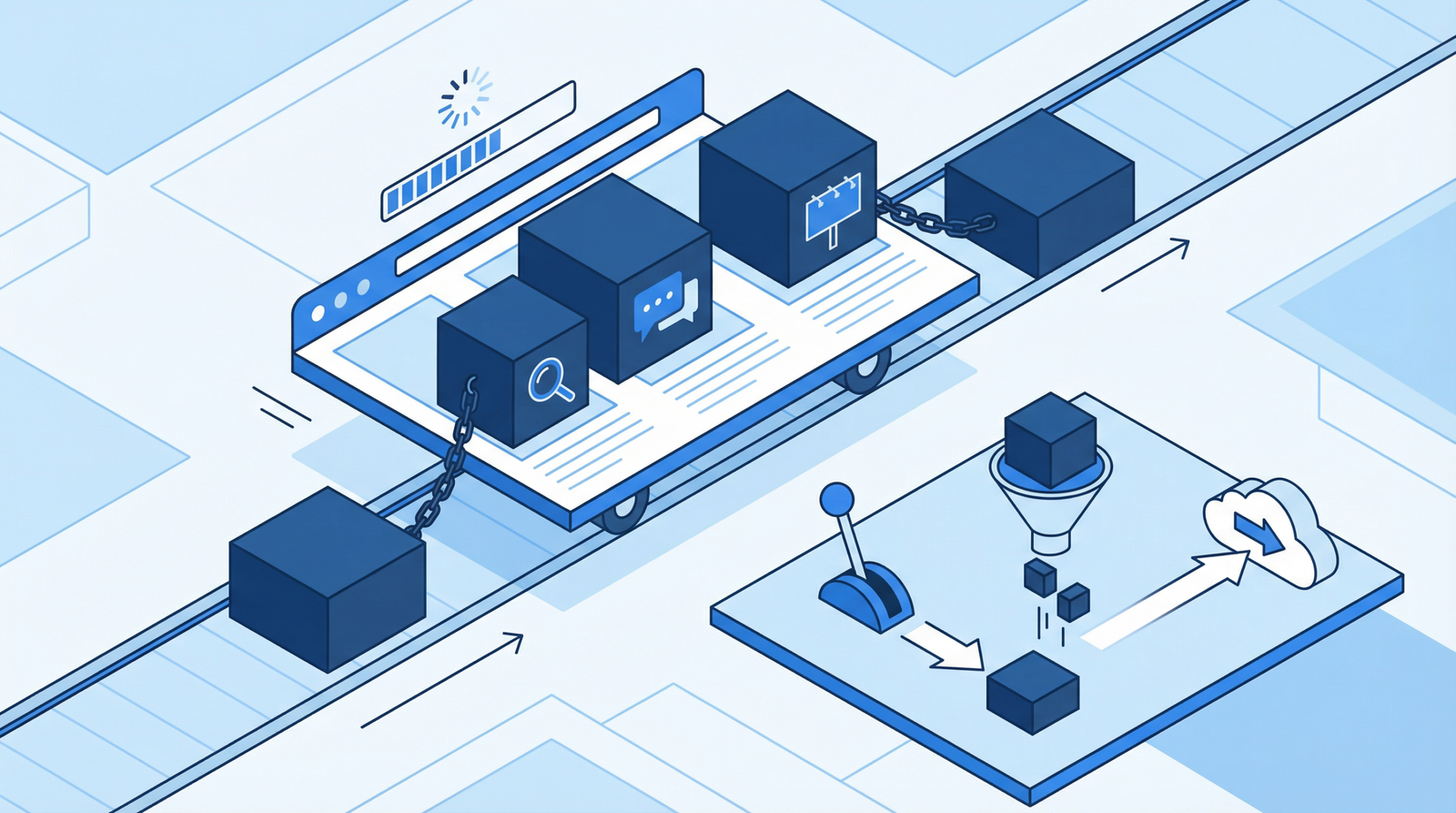
The primary culprit behind poor INP scores is often heavy or long-running JavaScript that blocks the browser’s main thread. When the main thread is busy processing scripts, it cannot respond to user inputs, leading to noticeable delays and a frustrating, laggy experience.
The Impact of Poor INP on Your Site
A high INP score (meaning slow responsiveness) can severely damage your website’s performance and user perception:
- Frustrated Users: When users click a button or type into a form and nothing happens instantly, they become annoyed. This can lead to higher bounce rates and a negative brand impression.
- Lower Engagement: A slow, unresponsive site discourages users from interacting further, reducing time on site and conversion rates.
- Negative SEO Impact: As a Core Web Vital, INP directly influences your search engine rankings. Google prioritizes websites that offer excellent user experiences, and poor INP can signal a subpar experience, potentially pushing your site down in search results.
- Accessibility Issues: Users with certain disabilities or those on slower networks are disproportionately affected by unresponsive interfaces.
Google aims for an INP score of under 200 milliseconds to ensure a good user experience. Anything above 500 milliseconds is considered poor.
How to Diagnose INP Issues on Your Website
Identifying the source of INP problems is the first step toward a solution. Here’s how you can check your site’s INP performance:
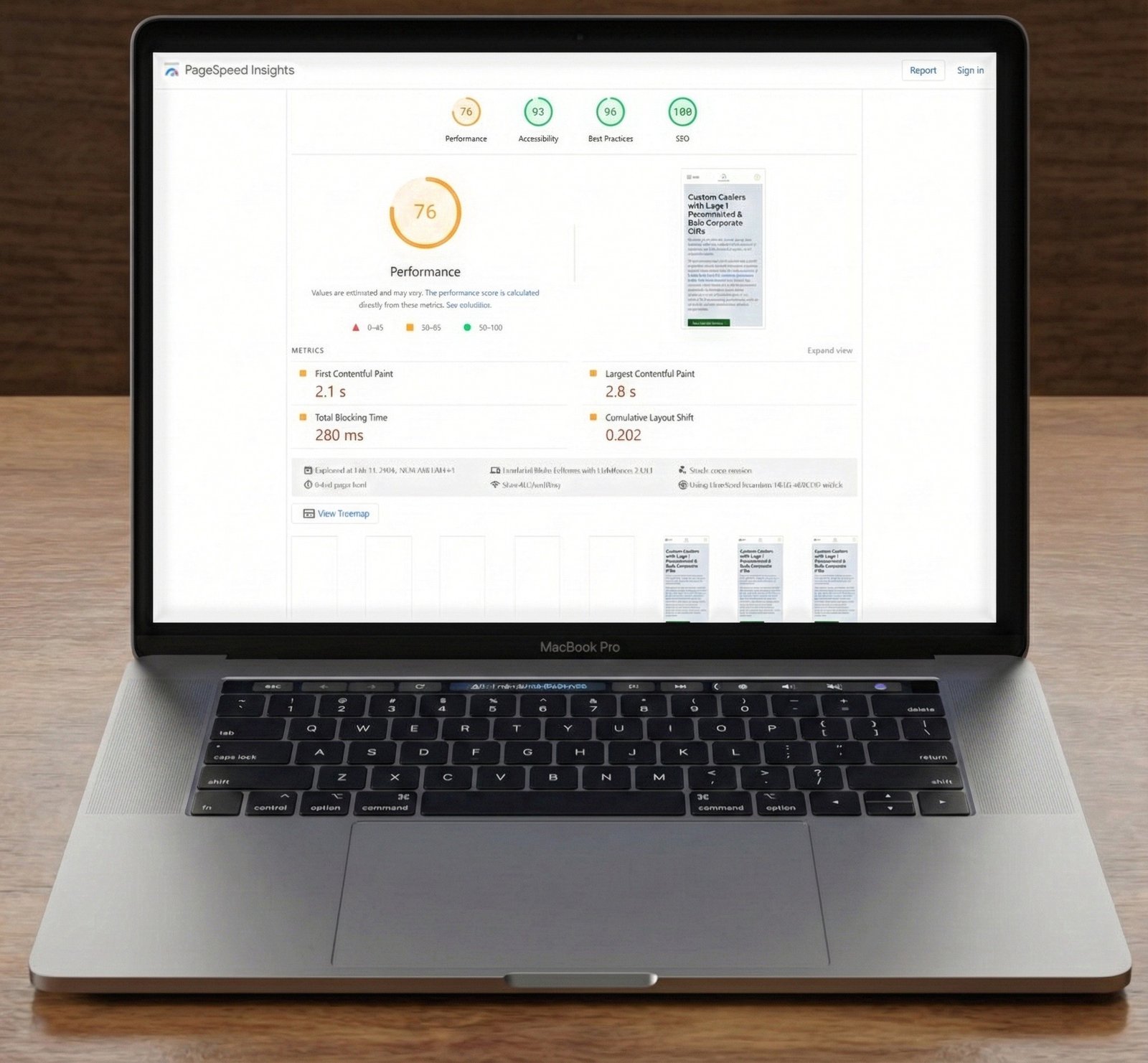
- PageSpeed Insights: This is your go-to tool for a quick overview. Run a report for your page and look specifically for the INP score in the Core Web Vitals assessment. It will also highlight opportunities for improvement, such as reducing JavaScript execution time.
- Chrome DevTools Performance Tab: For a deeper dive, open Chrome DevTools (F12 or Ctrl+Shift+I), navigate to the ‘Performance’ tab, and record a page load and user interactions. Look for long tasks (indicated by red triangles or long blocks in the main thread timeline) that are blocking responsiveness.
- Test Interactions Manually: Don’t underestimate the power of simply using your site. Click buttons, open menus, type into forms, and observe if there’s any noticeable delay in visual feedback. This qualitative assessment can often reveal issues that quantitative tools might miss.
- Web Vitals Chrome Extension: Install the official Web Vitals extension to get real-time Core Web Vitals metrics, including INP, as you browse your site.
Actionable Steps to Improve Your INP Score
Once you’ve identified INP bottlenecks, implement these strategies to enhance your site’s responsiveness:
1. Optimize JavaScript Execution
- Defer Non-Critical JavaScript: Load JavaScript that isn’t essential for the initial page render after the critical content has loaded. Use the
deferattribute for external scripts:<script src="non-critical.js" defer></script>This tells the browser to download the script in the background and execute it only after the HTML has been parsed.
- Asynchronously Load Scripts: For scripts that don’t depend on the HTML parsing order, use the
asyncattribute:<script src="analytics.js" async></script> - Break Up Long Tasks: If you have complex JavaScript functions that run for extended periods, break them into smaller, asynchronous chunks. This allows the browser’s main thread to remain free to respond to user input. You can use
setTimeoutto yield to the main thread:function processLargeArray(array) {
function processChunk(startIndex) {
const endIndex = Math.min(startIndex + 100, array.length);
for (let i = startIndex; i < endIndex; i++) {
// Process item
}
if (endIndex < array.length) {
setTimeout(() => processChunk(endIndex), 0);
}
}
processChunk(0);
}
2. Minimize Third-Party Script Impact
Third-party scripts (analytics, ads, social media widgets, etc.) are notorious for blocking the main thread. Audit your third-party scripts and:
- Remove Unnecessary Scripts: If you don’t need it, don’t load it.
- Load Scripts on Interaction: Only load certain scripts (e.g., chat widgets) when a user interacts with a specific element.
- Use Facades: For embeds like YouTube videos, use a lightweight facade that only loads the full embed when the user clicks on it.
3. Leverage Web Workers for Heavy Computations
Web Workers allow you to run scripts in a background thread, separate from the main thread. This is ideal for performing heavy, CPU-intensive computations without freezing the user interface. Consider offloading tasks like data processing or complex animations to Web Workers.
4. Choose Lighter Alternatives for Page Builders and Frameworks
While convenient, some page builders and JavaScript frameworks can introduce significant overhead. Evaluate if your current tools are contributing to INP issues. Sometimes, opting for a lighter, more performant alternative or a custom-coded solution can drastically improve responsiveness.
Conclusion
Interaction to Next Paint (INP) is a critical metric for gauging the real-world responsiveness of your website. By understanding its importance, diligently diagnosing issues, and implementing the optimization strategies outlined above, you can significantly improve your user experience, boost engagement, and strengthen your SEO performance in 2025 and beyond. Prioritize a smooth, interactive journey for your users, and your website will reap the rewards.