Boost Your Website Speed: The Essential Guide to CSS and JavaScript Minification (2025/2026)
Unlock Blazing Fast Websites: The Power of CSS and JavaScript Minification
In the relentless pursuit of a faster web, every byte counts. Unoptimized code can significantly drag down your website’s performance, leading to frustrated users and missed opportunities. One of the most common culprits? Unminified CSS and JavaScript files. If your website is serving up these bloated assets, you’re inadvertently slowing down your user experience and hurting your search engine rankings.
What Exactly is Minification and Why Does it Matter?
Imagine a beautifully written book, complete with detailed comments, elegant formatting, and generous spacing between paragraphs. While this is excellent for human readability, a computer doesn’t need any of that. Minification is the process of stripping away all unnecessary characters from your code without altering its functionality. This includes:
Whitespace characters (spaces, tabs, newlines)
Comments
Block delimiters
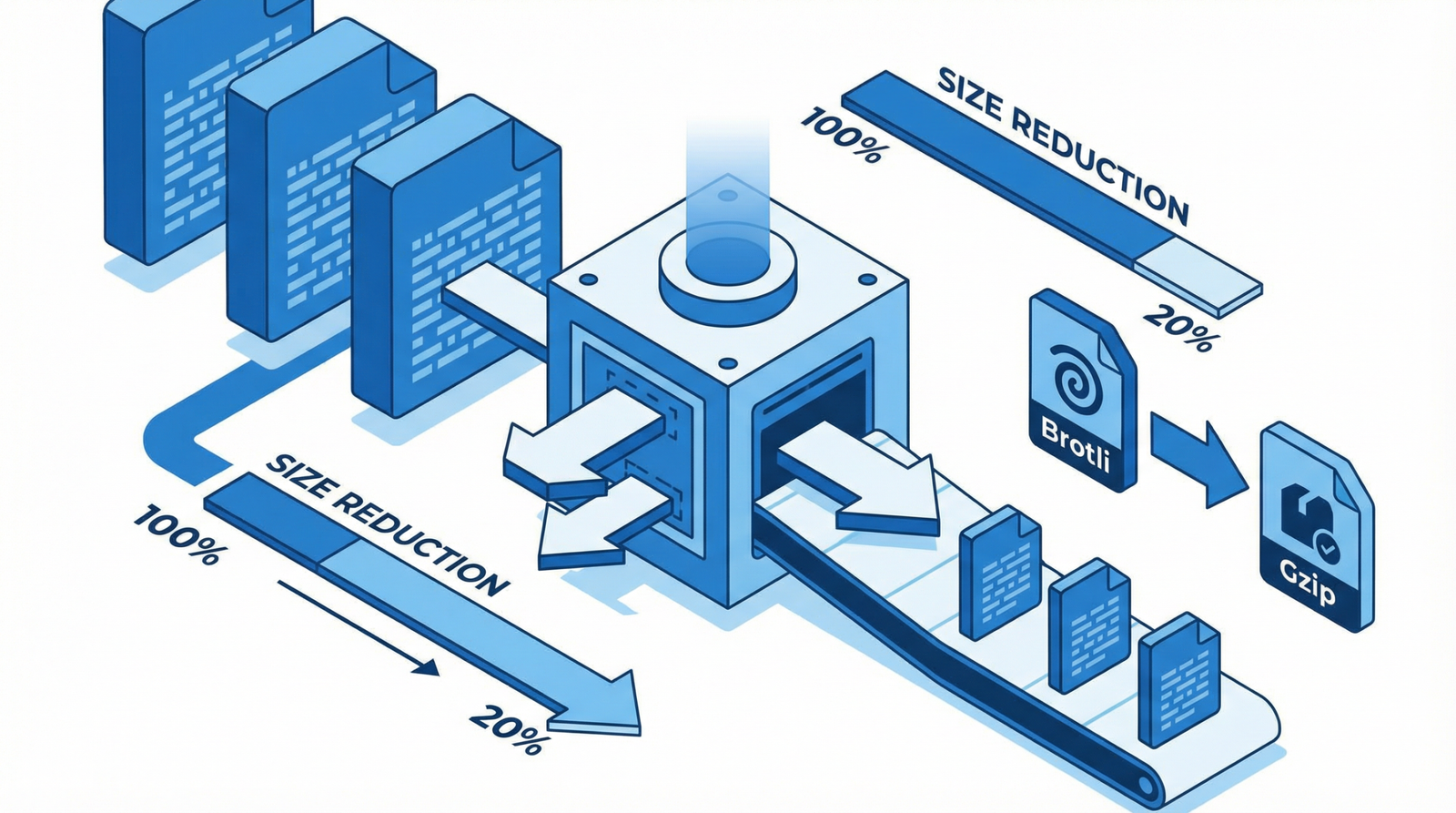
The result? A significantly smaller file size. These seemingly minor reductions add up, especially for websites with extensive stylesheets and scripts. For modern web performance in 2025/2026, minification remains a fundamental optimization technique. It directly contributes to:
Faster Download Times: Smaller files transfer quicker over the network.
Reduced Bandwidth Usage: Less data transferred means lower costs for both you and your users.
Improved Core Web Vitals: Minification positively impacts metrics like Largest Contentful Paint (LCP) and Total Blocking Time (TBT), which are crucial for SEO and user experience.
Enhanced User Experience: A faster site keeps users engaged and reduces bounce rates.
Is Your Website Suffering from Unminified Code? Here’s How to Check
Identifying unminified CSS and JavaScript is straightforward. Here are a few methods:
Direct File Inspection: Open your website’s CSS or JavaScript files directly in your browser (e.g., https://yourdomain.com/wp-content/themes/yourtheme/style.css). If you see neatly formatted code with comments and ample spacing, it’s likely unminified.
Browser Developer Tools: In your browser’s developer console (usually F12), navigate to the “Network” tab. Look for CSS and JS files and observe their sizes. You can also inspect the content to see if it’s human-readable or compressed.
PageSpeed Insights: Google’s PageSpeed Insights tool is an invaluable resource. Run an audit of your site, and it will explicitly flag “Minify CSS” and “Minify JavaScript” as recommendations if they are needed.
Actionable Steps: How to Fix Unminified CSS and JavaScript
The good news is that fixing this issue is relatively simple, with various tools and methods available:
For WordPress Users (Recommended Approach)
If your site runs on WordPress, leveraging a robust optimization plugin is the easiest and most effective solution. These plugins handle minification, concatenation, and other performance enhancements automatically.
Autoptimize: A popular free plugin that offers comprehensive minification for HTML, CSS, and JavaScript.
WP Rocket: A premium, user-friendly plugin known for its all-in-one performance optimization features, including excellent minification.
LiteSpeed Cache: A free, server-specific plugin for LiteSpeed servers, offering powerful caching and optimization.
Most of these plugins allow you to enable minification with a few clicks, significantly improving your site’s performance without requiring any code changes.
Manual Minification and Build Process Integration
For developers or those not using a CMS like WordPress, integrating minification into your build process is the standard practice. This ensures that your production assets are always optimized.
JavaScript: Tools like Terser (a modern successor to UglifyJS) are widely used for JavaScript minification.
CSS:CleanCSS and PostCSS with plugins like cssnano are excellent choices for CSS minification.
Build Tools: Modern build tools like Webpack, Rollup, or Gulp can be configured to automatically minify your assets as part of your deployment pipeline.
Example: Integrating Minification with a Build Tool (Gulp)
Here’s a simplified example of how you might set up Gulp to minify CSS and JavaScript files:
This setup ensures that whenever you run your build command, your CSS and JS files are automatically minified and placed in your dist folder, ready for deployment.
Don’t Let Unminified Code Hold You Back
In today’s competitive digital landscape, website performance is not just a technical detail; it’s a critical factor for user satisfaction, conversion rates, and search engine visibility. By taking the simple yet powerful step of minifying your CSS and JavaScript, you can significantly reduce page load times, improve Core Web Vitals, and deliver a snappier, more enjoyable experience for all your visitors. Make minification a priority in your web optimization strategy for 2025 and beyond.