Is your website costing you customers before it even loads?

Advertisement. We earn a commission if you sign up through this link, at no extra cost to you.
You know the feeling. You pour your heart into your business, invest in a beautiful website, and then… crickets. Visitors land on your page and vanish before they even see what you offer. Your bounce rate is through the roof, and you’re left wondering what went wrong.
Here’s the hard truth: every 1-second delay in load time can reduce conversions by 7%. That’s not a technical problem—that’s a revenue problem. If your site takes 5 seconds to load instead of 2, you could be losing nearly a quarter of your potential customers before they even read your headline.
After 25 years of auditing websites for businesses just like yours, I’ve seen the same culprits appear again and again. The good news? Most of them are fixable, and some you can tackle yourself in the next 30 minutes.
In this guide, I’ll walk you through the 10 most common reasons your website is slow, translate the technical jargon into plain English, and give you actionable steps to start improving your website loading speed today.
The 10 Common Culprits of a Slow Website
1. Bloated, Unoptimized Images: The #1 Offender
What it is: You upload a photo straight from your phone or camera—a gorgeous 5MB, ultra-high-resolution image—directly to your website. Your visitors’ browsers have to download that massive file before displaying it.
The business impact: Images are the single biggest cause of slow websites I encounter. A homepage with 10 unoptimized images can take 15+ seconds to load on a mobile connection. By the time your hero image appears, your customer has already left.
Think of it this way: You wouldn’t mail a customer a 50-pound catalog when a 2-ounce brochure contains the same information. Don’t make their browser download a 5MB image when a 200KB version looks identical on screen.
2. Slow Web Hosting: The “Bad Neighborhood”
What it is: You’re paying $5-10 per month for shared hosting. Your website lives on a server with hundreds of other websites, all competing for the same resources. When another site gets a traffic spike, your site slows to a crawl.
The business impact: This is like building a mansion on a swampy foundation. Everything else you build on top will sink. Cheap shared hosting is the single biggest infrastructure problem I see with small business websites.
The difference: Managed WordPress hosting (yes, it costs more) gives your site dedicated resources, automatic performance optimization, and server-level speed enhancements you can’t replicate on budget hosting.
3. Too Many Plugins (For WordPress Users)
What it is: Each WordPress plugin is a mini-program that has to load when someone visits your site. That social sharing toolbar? That contact form? That Instagram feed? Each one adds code, database queries, and processing time.
The business impact: I’ve audited WordPress sites with 40+ active plugins. Each one seemed “necessary” at the time, but together they created a slow, bloated mess. More plugins = more code = slower site.
The rule of thumb: If you haven’t used a plugin in 60 days, deactivate it. Keep only what actively drives revenue or critical functionality.
4. No Caching: Making Your Site Think Too Hard
What it is: Every time someone visits your site without caching, your server has to build the entire page from scratch—pulling from the database, running code, assembling everything together. It’s like a chef cooking each order individually instead of having pre-prepared components ready.
The business impact: Caching saves a “pre-built” version of your pages so repeat visitors (and even first-time visitors to different pages) get served content instantly. Without it, every single page load hammers your server unnecessarily.
Think of it this way: Caching is like your website’s short-term memory. It remembers what it just created so it doesn’t have to recreate it from scratch every single time.
5. Render-Blocking Resources: A Traffic Jam in the Code
What it is: When your website loads, certain files (CSS stylesheets and JavaScript) can block everything else from displaying. Your browser downloads these files one at a time before it can show your content.
The business impact: Your visitor sees a blank white screen while your site’s code is stuck in a traffic jam. They’re waiting, getting impatient, and increasingly likely to hit the back button.
The technical reality: This is one of the trickier issues to fix DIY, but it’s worth understanding. When Google PageSpeed Insights mentions “eliminate render-blocking resources,” this is what they mean.
6. Bloated Website Code or Theme
What it is: Many WordPress themes—especially the “all-in-one” themes with hundreds of built-in features—come packed with code you’ll never use. All that unnecessary code still has to load, process, and execute.
The business impact: A poorly coded theme is like driving a semi-truck to pick up groceries. It works, but it’s wildly inefficient. You’re hauling around thousands of pounds of features you don’t need.
What to look for: Lightweight, well-coded themes built for speed (like GeneratePress or Astra) can make your site 50-60% faster than bloated “page builder” themes.
7. Too Many External Scripts: Death by a Thousand Cuts
What it is: Google Analytics. Facebook Pixel. Live chat widget. Email popup. Heatmap tracking. Ad networks. Each one of these tools requires your website to call out to another company’s server, wait for a response, and load their code.
The business impact: Each external script adds 200-500 milliseconds to your load time. With 10 scripts, you’ve added 2-5 seconds before your page becomes usable. I’ve seen websites with 20+ external scripts running on every page.
The harsh question: Is that chat widget that nobody uses worth losing 7% of your conversions? Track only what you actually review and act upon.
8. No Content Delivery Network (CDN)
What it is: Your website files live on a single server in, say, Virginia. When someone in Australia visits your site, their browser has to travel halfway around the world to fetch your content. A CDN stores copies of your website on servers globally, delivering content from whichever location is closest to your visitor.
The business impact: Without a CDN, international visitors (and even domestic visitors far from your server) experience significantly slower load times. With a CDN, a visitor in Tokyo loads your site from a Tokyo server, not Virginia.
The good news: Many managed hosting providers include a CDN for free. Services like Cloudflare also offer free CDN plans.
9. Large Video Files: The Bandwidth Killer
What it is: You’ve embedded a 200MB promotional video directly on your homepage. Every visitor’s browser tries to download it, crushing your bandwidth and their patience.
The business impact: Self-hosting videos is almost never worth it for small businesses. Your hosting account has limited bandwidth, video files are enormous, and you’re not getting the optimized, adaptive streaming that video platforms provide.
The solution: Upload your videos to YouTube or Vimeo (even as “unlisted” if you don’t want them public) and embed them on your site. Let them handle the bandwidth, hosting, and delivery optimization.
10. Database Issues (For WordPress)
What it is: Your WordPress database is like a filing cabinet. Over time, it fills with junk: post revisions, deleted comments, expired transients, spam entries. Every database query has to search through all this clutter.
The business impact: A bloated database makes every page load slower because WordPress has to dig through thousands of unnecessary records to find what it needs.
The maintenance: This isn’t something you notice day-to-day, but over months and years, it accumulates. Regular database optimization can recover surprising amounts of performance.
DIY Quick Wins: 4 Steps You Can Take in the Next 30 Minutes
You don’t need to be a developer to improve website performance optimization. Here are four actionable steps you can implement right now, for free, that will make a measurable difference.
1. Test Your Speed for Free
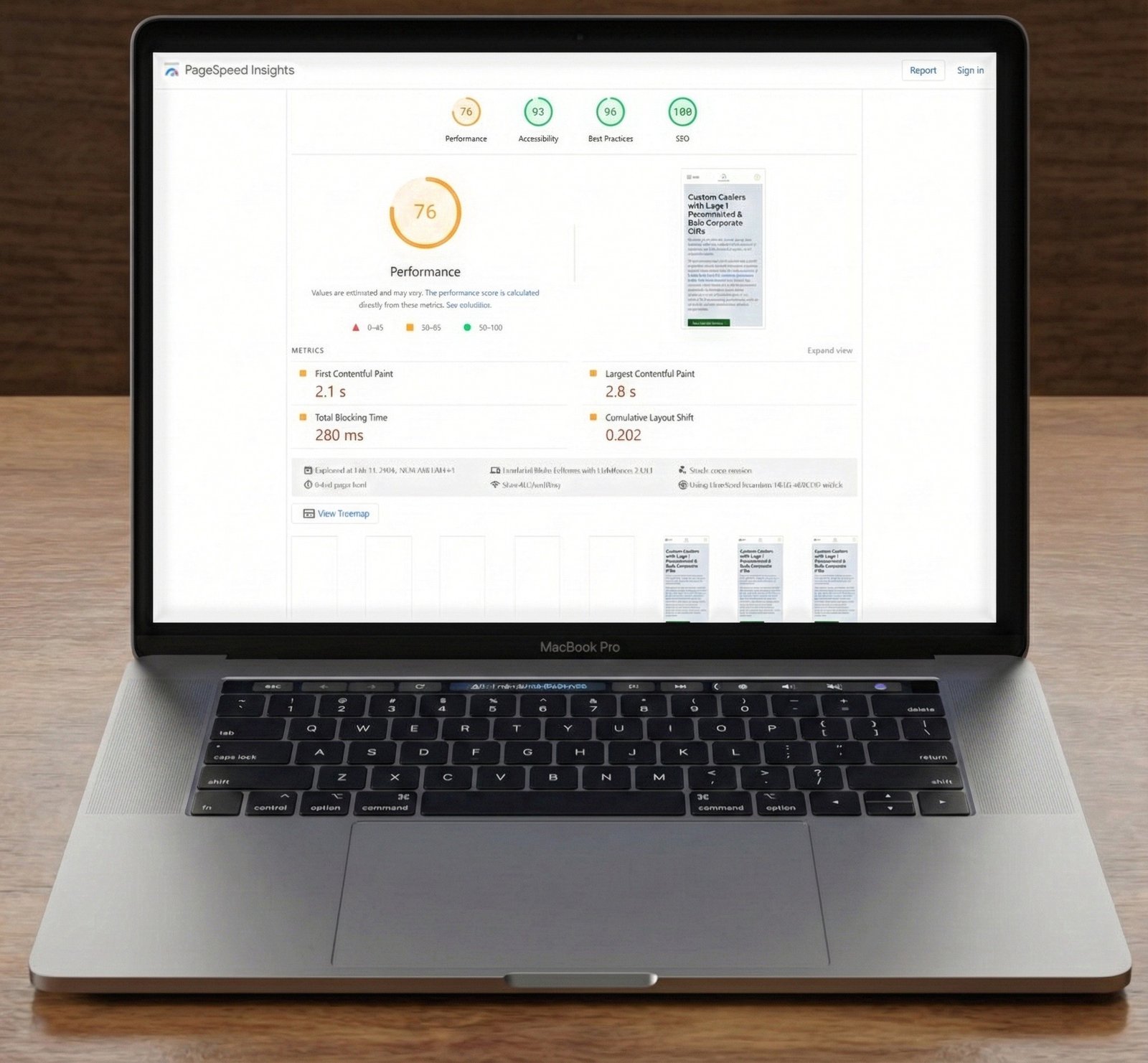
Right now, before you change anything, go to Google PageSpeed Insights and enter your website URL.

What to look for:
- The overall Performance score (aim for 90+)
- Core Web Vitals metrics (the green/orange/red indicators)
- The specific opportunities section—this tells you exactly what’s slowing you down
Run tests for both desktop and mobile. Save these results—you’ll want to compare them after making improvements.
Pro tip: Test your most important pages: homepage, main service/product page, and contact page. Don’t just test the homepage.
2. Optimize Your Images: The Easiest Fix
This is the lowest-hanging fruit and delivers the biggest immediate impact.
Step-by-step:
- Find the largest images on your website (usually your homepage hero image, product photos, or gallery images)
- Download them to your computer
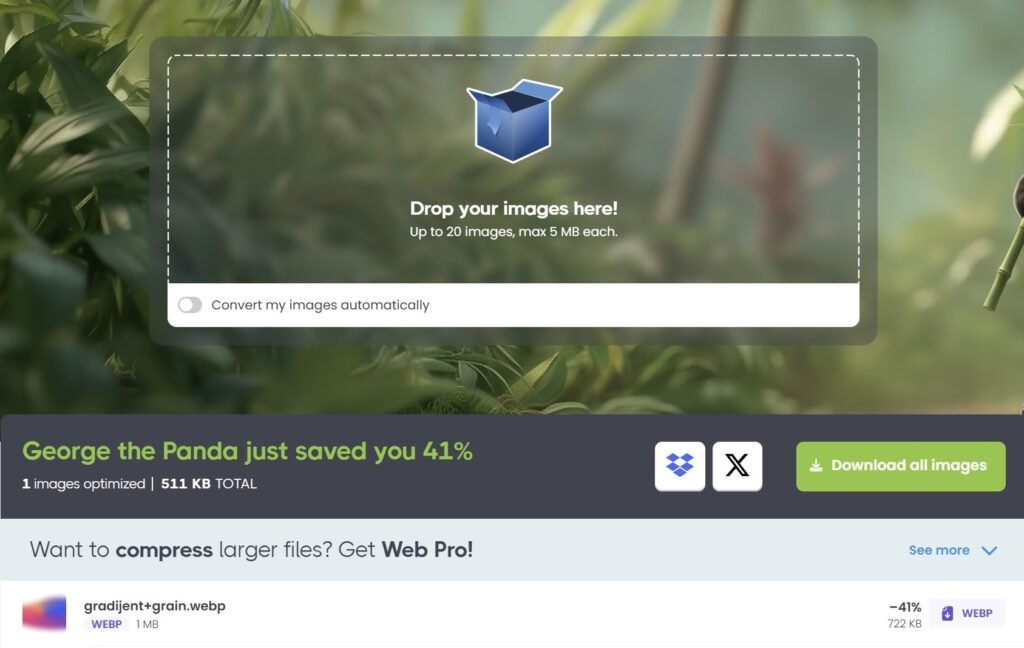
- Go to TinyPNG.com (it’s completely free)
- Upload your images
- Download the compressed versions
- Replace the old images on your website with the compressed versions
What you’ll see: File size reductions of 60-80% with zero visible quality loss. A 3MB image becomes 600KB. That’s a massive performance win.
Bonus: If you’re on WordPress, install the free “Smush” plugin to automatically optimize images as you upload them going forward.
3. Install a Caching Plugin (For WordPress)
If you’re on WordPress and don’t have a caching plugin, you’re leaving the easiest performance improvement on the table.
Recommended plugins (all free):
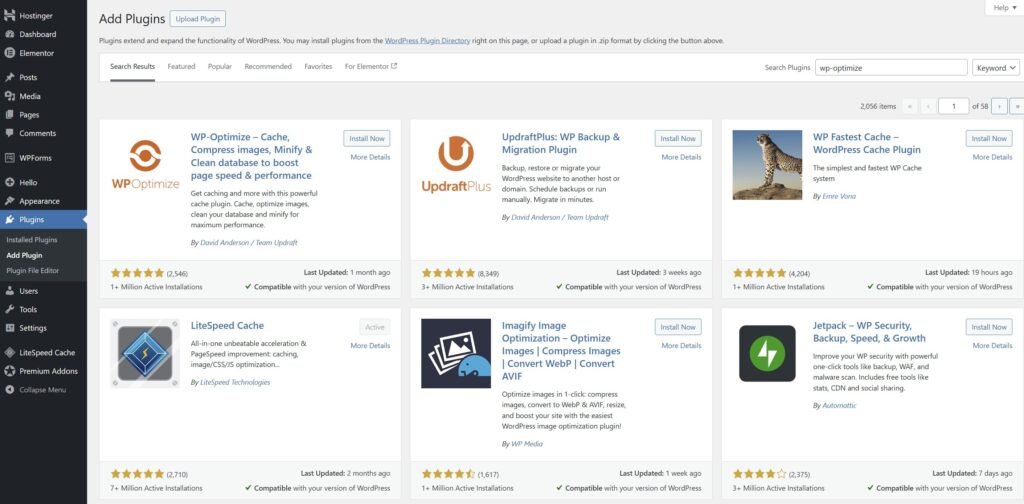
- WP-Optimize (easiest for beginners)
- W3 Total Cache (more features, slightly more complex)
- LiteSpeed Cache (if your host uses LiteSpeed servers)
Installation:
- In your WordPress dashboard, go to Plugins → Add New
- Search for “WP-Optimize”
- Click “Install Now,” then “Activate”
- Go to the plugin settings and enable caching
- That’s it—you’ll see an immediate speed boost
What it does: Creates saved versions of your pages so your server doesn’t rebuild them from scratch every time. This can reduce server response time by 50-70%.
4. The Hosting Litmus Test
Ask yourself: How much am I paying for hosting each month?
If you’re paying less than $20/month, you’re almost certainly on slow shared hosting. This is your foundation problem. You can optimize images and install plugins all day, but you’re still building on quicksand.
The single biggest improvement you can make is upgrading to a managed WordPress host like Kinsta or Hostinger. Yes, they cost $30-50/month instead of $10. But here’s what you get:
- Server-level caching and optimization
- Automatic image compression
- Built-in CDN
- Staging environments for testing
- Expert WordPress support
- Free migration—they move your site for you
Think of it this way: If slow hosting is costing you even one customer per month, the upgrade has paid for itself. Most managed hosts offer free migration, so the technical work is done for you.
| Feature | Shared Hosting ($10/mo) | Managed WordPress ($35/mo) |
|---|---|---|
| Server resources | Shared with 100+ sites | Dedicated |
| Speed optimization | Manual | Automatic |
| CDN included | ❌ | ✅ |
| Free migration | ❌ | ✅ |
| Expert support | Generic | WordPress-specific |
Don’t Leave Money on the Table
Speed isn’t a luxury—it’s a revenue multiplier. The fixes I’ve outlined above can make a real, measurable difference in your website loading speed. Test your speed, compress your images, install caching, and seriously evaluate your hosting. These four steps alone can improve your load time by 40-60%.
But here’s the reality: you don’t know what you don’t know.
Maybe you’ve done everything in this guide and your site is still underperforming. Maybe you’re leaving more subtle, revenue-killing bottlenecks unaddressed. Or maybe you simply don’t have 10 hours to learn website performance optimization—you have a business to run.
That’s where a professional audit provides clarity and ROI.
We go beyond the free tools and surface-level fixes. We analyze your entire technical stack, identify every performance bottleneck, and deliver a prioritized, ROI-focused roadmap specific to your business goals. No technical jargon. No unnecessary recommendations. Just the changes that will move the needle on revenue.
Your website should be your best salesperson, not your biggest liability.
Ready to stop guessing and start improving?
Order Your Expert Web Audit Today →
Have questions about your website speed test results? Drop a comment below and I’ll personally review your situation.

Advertisement. We earn a commission if you sign up through this link, at no extra cost to you.