The Silent SEO Killer: Why Your Staging Site Must Stay Hidden from Search Engines
In the fast-paced world of web development, staging sites are indispensable. They provide a safe sandbox for testing new features, designs, and content before pushing them live. However, a common and often overlooked mistake can turn this essential development tool into a significant SEO liability: allowing your staging site to be crawled and indexed by search engines.
The Problem: Your Staging Site is Publicly Accessible

Imagine pouring countless hours into optimizing your live website for search engines, only to have your efforts undermined by an identical, unfinished version of your site appearing in search results. This is precisely what happens when your staging or development environment is accessible to search engine crawlers and subsequently gets indexed.
Why an Indexed Staging Site Harms Your SEO and Brand
The consequences of an indexed staging site extend far beyond mere inconvenience:
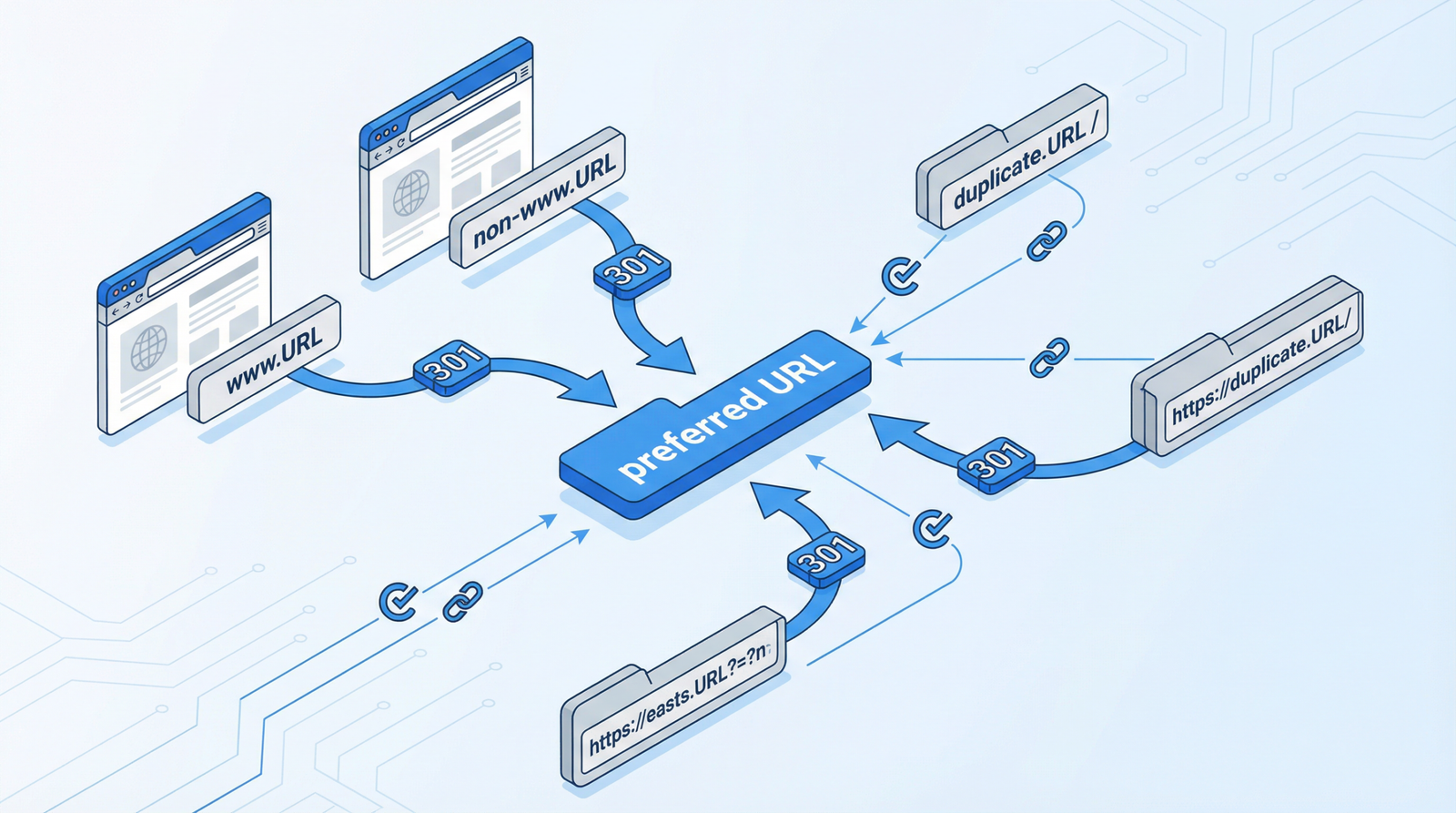
- Duplicate Content Penalties: Search engines like Google strive to provide unique and valuable content to users. When they encounter two identical or near-identical versions of your site (live and staging), they may struggle to determine which one is the authoritative source. This can lead to duplicate content issues, potentially diluting your SEO authority and causing both versions to rank poorly.
- Confused Search Engine Signals: An indexed staging site can confuse search engines about which version of your content is canonical. This ambiguity can negatively impact your site’s crawl budget and how effectively your important pages are discovered and ranked.
- Exposing Unfinished Work: Staging sites often contain incomplete designs, placeholder text, broken functionalities, or even sensitive test data. Public exposure of such content can severely damage your brand reputation, erode user trust, and present an unprofessional image to potential customers.
- Security Risks: While not directly an SEO issue, an indexed staging site can inadvertently expose vulnerabilities or internal configurations that malicious actors could exploit.
How to Check if Your Staging Site is Indexed
Identifying if your staging site has fallen victim to indexing is crucial. Here’s how you can check:
- Google Site Search: Perform a targeted search in Google using operators like
site:staging.yoursite.comorsite:dev.yoursite.com(replaceyoursite.comwith your actual domain). If any results appear, your staging site is indexed. - Google Search Console (GSC): Check your Google Search Console account for multiple properties related to your domain. If you see properties for staging or development subdomains, it indicates they are being tracked and potentially indexed.
- Review Search Results: Periodically look for any staging or development URLs appearing in general search results for your brand or keywords.
- Check
robots.txt: Examine therobots.txtfile on your staging site (e.g.,staging.yoursite.com/robots.txt). If it doesn’t explicitly disallow all user-agents, crawlers might be accessing your content.
Actionable Steps to Fix and Prevent Staging Site Indexing
Preventing search engines from indexing your staging site is a fundamental SEO best practice. Here are several robust methods to ensure your development environment remains private:
1. Implement a noindex Meta Tag
This is one of the most effective ways to tell search engines not to index a page. Add the following meta tag within the <head> section of all pages on your staging site:
<meta name="robots" content="noindex, nofollow, noarchive, nosnippet">For WordPress users, you can automate this with a simple function in your theme’s functions.php file or a custom plugin:
// Automatically noindex staging sites
function noindex_staging_sites() {
    $staging_domains = array(
        'staging.yoursite.com',
        'dev.yoursite.com',
        'test.yoursite.com',
        'yoursite.staging.wpengine.com' // Example for specific hosting environments
    );
    $current_domain = $_SERVER['HTTP_HOST'];
    if (in_array($current_domain, $staging_domains)) {
        echo '<meta name="robots" content="noindex, nofollow, noarchive, nosnippet">';
    }
}
add_action('wp_head', 'noindex_staging_sites');
2. Utilize robots.txt for Broad Disallowance
While noindex is preferred for individual pages, robots.txt can prevent crawlers from accessing entire sections or the whole staging site. Place a robots.txt file in the root directory of your staging site with the following content:
User-agent: *
Disallow: /
This directive tells all search engine bots not to crawl any part of your site. Important: While robots.txt prevents crawling, it doesn’t guarantee de-indexing if pages were already discovered. For absolute prevention, combine with the noindex meta tag.
3. Password Protect Your Staging Environment
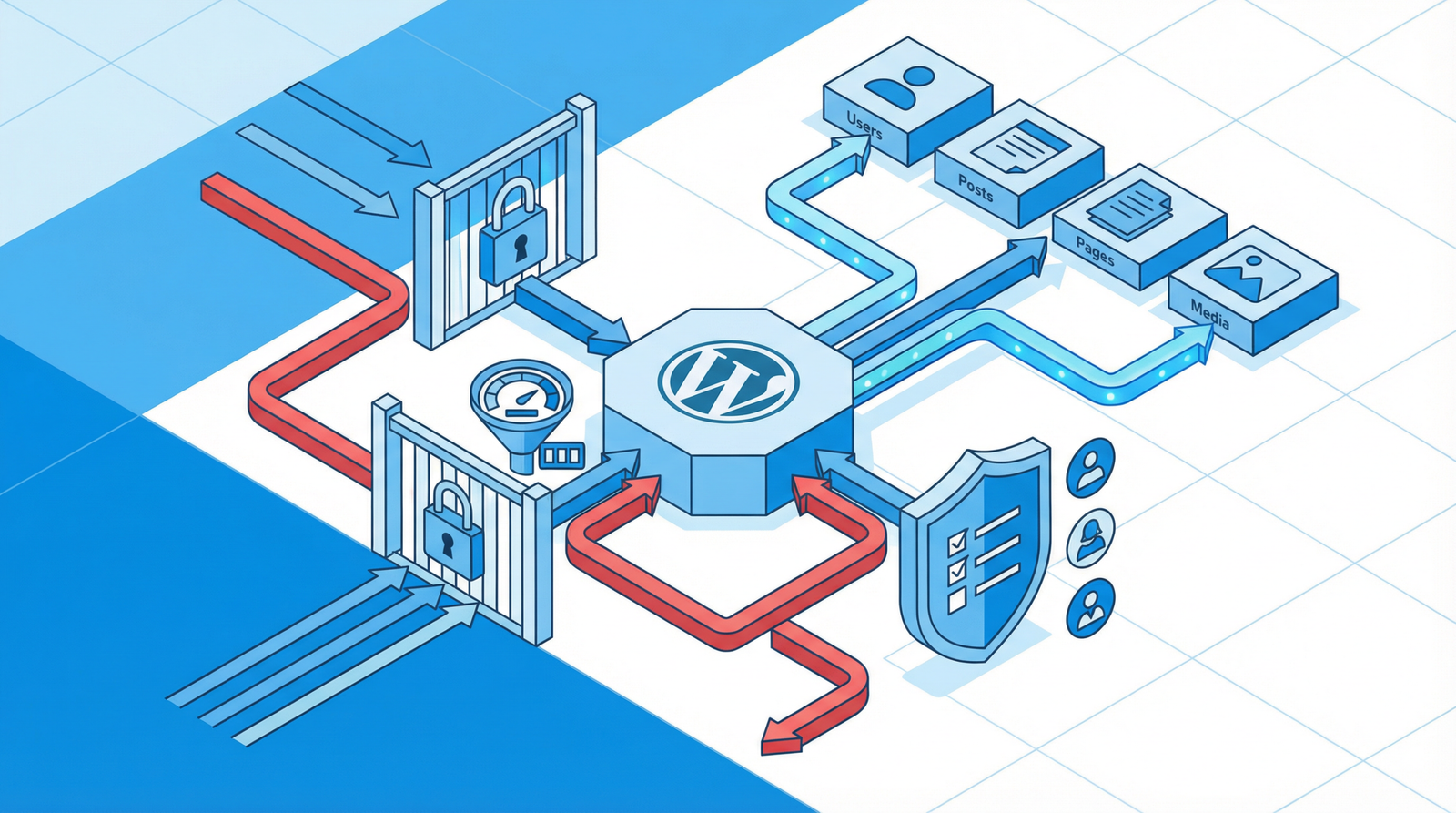
The most secure method is to password-protect your staging site, making it inaccessible to anyone without credentials, including search engine bots. This can be done using .htaccess for Apache servers:
AuthType Basic
AuthName "Staging Site - Authorized Access Only"
AuthUserFile /path/to/.htpasswd
Require valid-user
You’ll need to create a .htpasswd file containing encrypted usernames and passwords.
4. WordPress Specific Settings
For WordPress sites, there’s a built-in option to discourage search engines. Navigate to Settings > Reading in your WordPress admin and check the box next to