Digital Declutter: Why Unused WordPress Plugins and Themes Are Harming Your Site (2025/2026 Update)
The Hidden Dangers of Digital Clutter: Why Unused WordPress Plugins and Themes Are Killing Your Site’s Performance and Security
In the fast-paced world of web development, it’s easy to accumulate digital clutter. For WordPress users, this often manifests as a growing collection of unused plugins and themes. While seemingly harmless, these dormant components can silently sabotage your website’s performance, compromise its security, and create unnecessary maintenance headaches. This post will delve into the critical reasons why you should regularly audit and clean up your WordPress installation, and provide actionable steps to keep your site lean, fast, and secure.
What’s the Problem with Unused Plugins and Themes?
Many WordPress users, in their quest for new functionalities or design aesthetics, install numerous plugins and themes. Over time, some of these become redundant or are replaced by better alternatives. However, they often remain installed, merely deactivated, on the server. This practice introduces several significant risks:
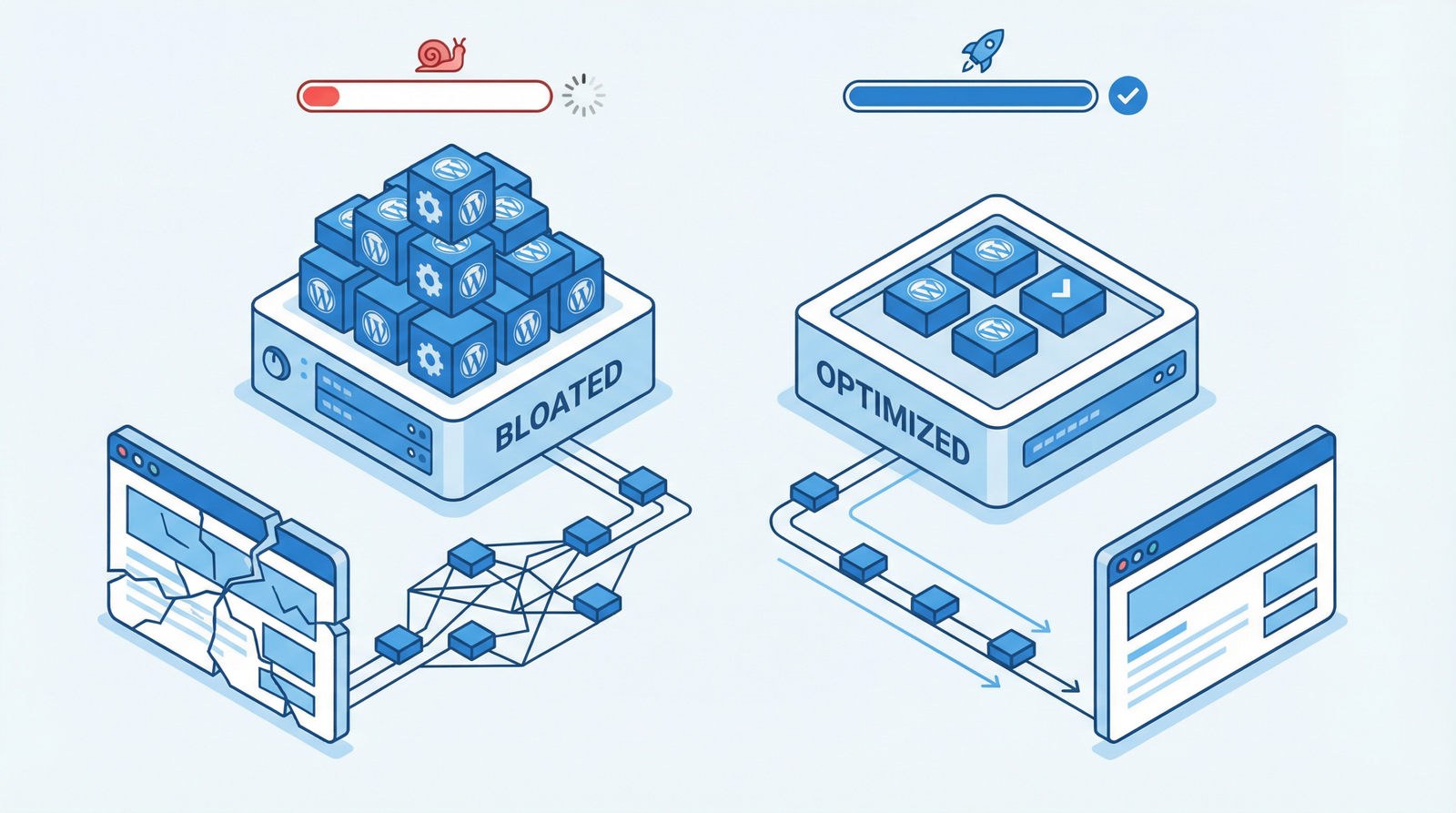
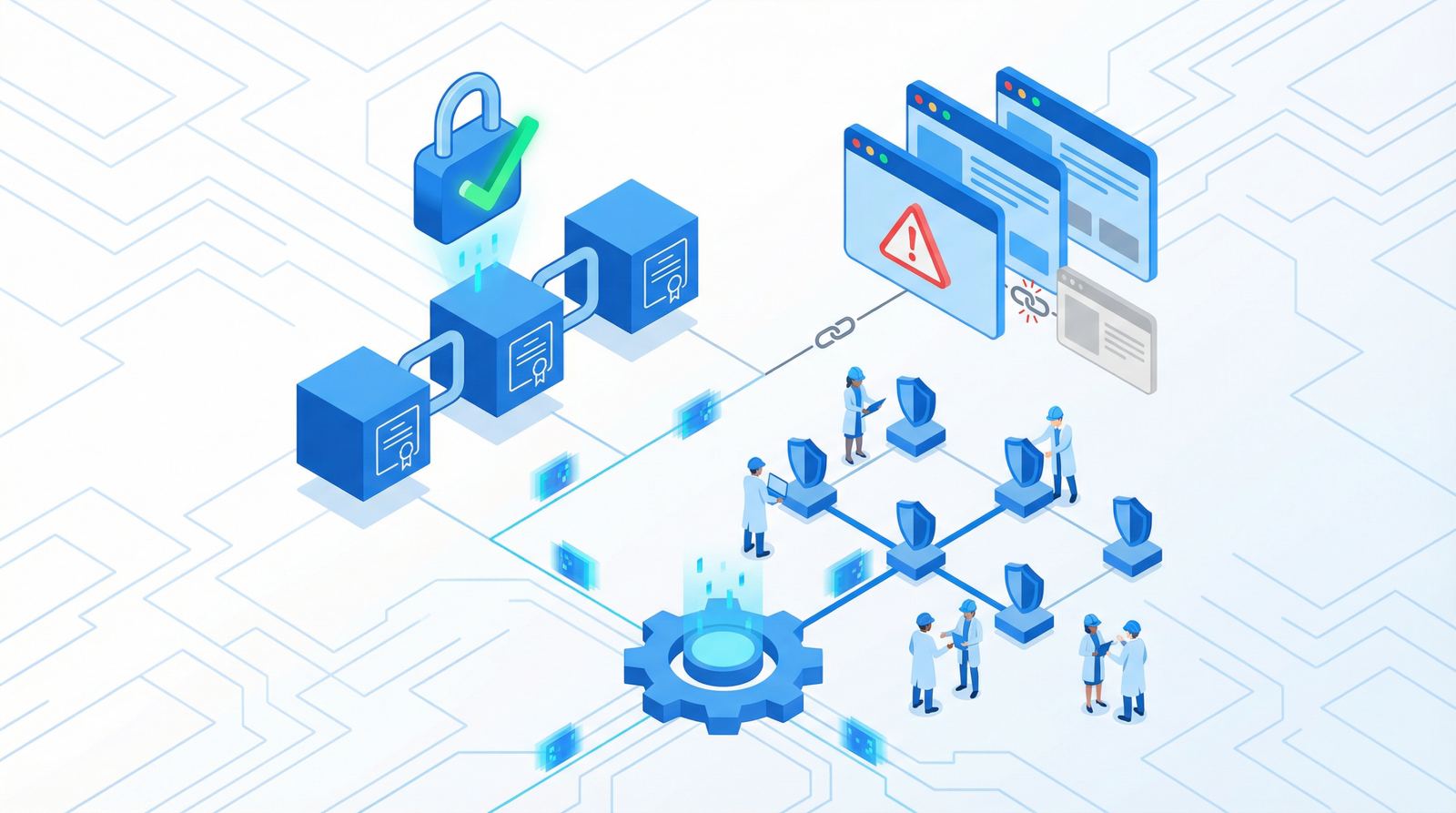
Security Vulnerabilities: Even deactivated plugins and themes can harbor security flaws. These vulnerabilities can be exploited by malicious actors to gain unauthorized access to your website, inject malware, or deface your content. As of 2025/2026, the threat landscape is more sophisticated than ever, making every potential entry point a critical concern.
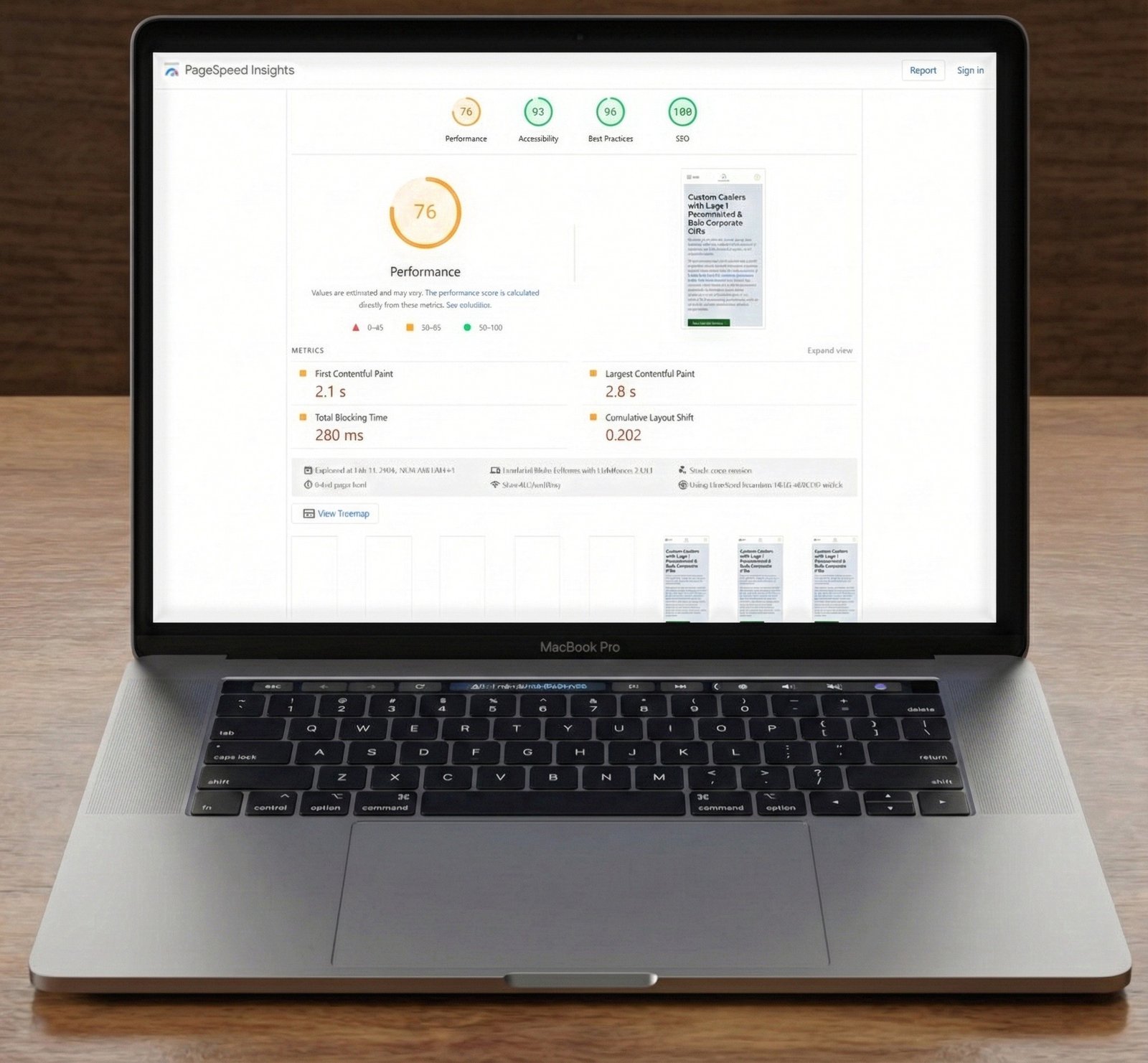
Performance Degradation: While inactive, these files still reside on your server, contributing to a larger file system. This can slow down backup processes, increase the time it takes for server-side operations, and potentially impact overall site responsiveness, especially during resource-intensive tasks.
Increased Backup Sizes: A bloated file system directly translates to larger backup files. This consumes more storage space, increases backup and restoration times, and can lead to higher hosting costs.
Maintenance Overhead: Managing an excessive number of plugins and themes, even inactive ones, adds to the complexity of your WordPress installation. It makes it harder to identify essential components, troubleshoot issues, and keep track of updates.
How to Identify Digital Clutter on Your WordPress Site
Regular auditing is key to maintaining a healthy WordPress environment. Here’s how you can check for unused plugins and themes:
Plugins Audit: Navigate to Plugins → Installed Plugins in your WordPress admin dashboard. Carefully review the list and identify any plugins that are currently deactivated and no longer serve a purpose.
Themes Audit: Go to Appearance → Themes. Beyond your active theme, you should ideally only keep one default WordPress theme (e.g., Twenty Twenty-Four) as a fallback. Any other installed themes that are not in use should be considered for removal.
File System Inspection (Advanced): For a more thorough check, access your website’s file system via SFTP or your hosting provider’s file manager. Look into the wp-content/plugins/ and wp-content/themes/ directories for folders that do not correspond to any active or intentionally kept inactive plugins/themes. Sometimes, plugins are not fully removed through the WordPress dashboard, leaving orphaned directories.
Backup Size Monitoring: Keep an eye on the size of your website backups. A sudden or gradual increase without a corresponding increase in content or active functionality can indicate file system bloat from unused components.
Actionable Steps to Clean Up Your WordPress Installation
Once you’ve identified the digital clutter, it’s time for a systematic cleanup. Always ensure you have a recent, full backup of your website before performing any major deletions.
1. Plugin Cleanup
Deactivate and Delete: For any identified unused plugins, first deactivate them from the Plugins → Installed Plugins page. Once deactivated, the option to delete will appear. Confirm the deletion.
Manual Folder Removal: If you find orphaned plugin directories via SFTP/file manager, carefully delete them. Be absolutely certain that the folder does not belong to an active or essential plugin.
2. Theme Cleanup
Delete Unused Themes: In Appearance → Themes, delete all themes except your active theme and one default WordPress theme (e.g., Twenty Twenty-Four) as a safe fallback.
3. Utilize Cleanup Plugins (Recommended)
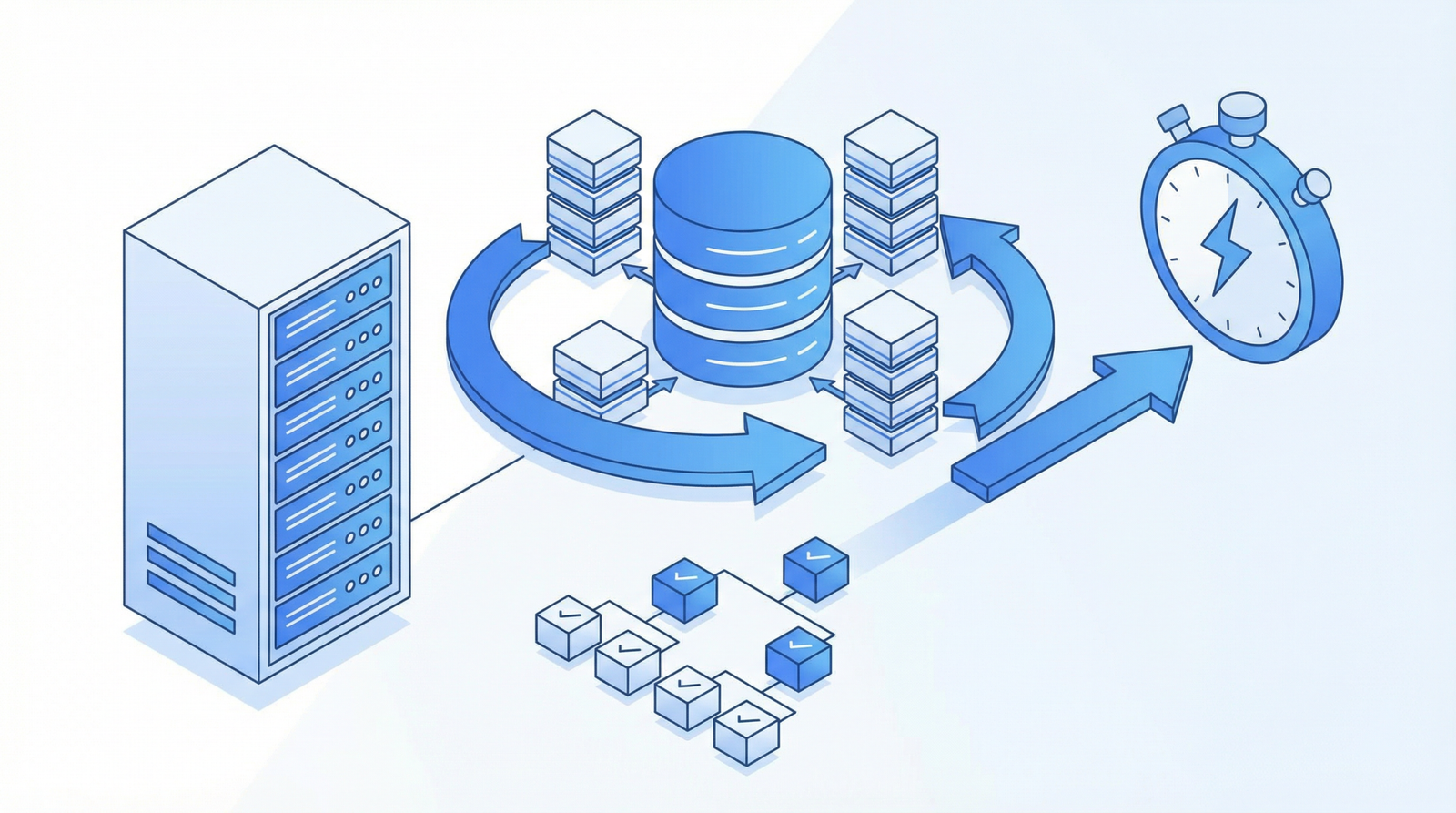
Several reputable WordPress plugins can assist with comprehensive cleanup tasks, including database optimization and identifying leftover files:
WP-Optimize: A popular choice that includes features for database cleanup, image compression, and identifying unused tables.
Advanced Database Cleaner: Offers more granular control over database optimization, helping to remove orphaned data left behind by plugins.
4. Implement Security Best Practices
Beyond cleanup, proactive measures are crucial for long-term site health:
Regular Audits: Make it a habit to periodically review your installed plugins and themes (e.g., quarterly) to ensure everything is still necessary and active.
Reputable Sources Only: Only install plugins and themes from trusted sources like the official WordPress Plugin Directory, reputable theme marketplaces, or well-known developers.
Minimalist Approach: Strive for a clean, minimal WordPress installation. Only install plugins that are absolutely essential for your site’s functionality.
Documentation: Keep a record of which plugins are critical for your site’s operation versus those that were experimental or temporary.
Conclusion
Neglecting unused WordPress plugins and themes is a common oversight that can lead to significant security risks and performance bottlenecks. By adopting a proactive approach to digital hygiene, regularly auditing your installation, and promptly removing unnecessary components, you can ensure your WordPress site remains fast, secure, and efficient. A clean site is not just a faster site; it’s a more resilient and manageable one.