Boost Your LCP: Prioritizing Hero Images for a Faster Web Experience
The Critical Role of Your Hero Image in Web Performance
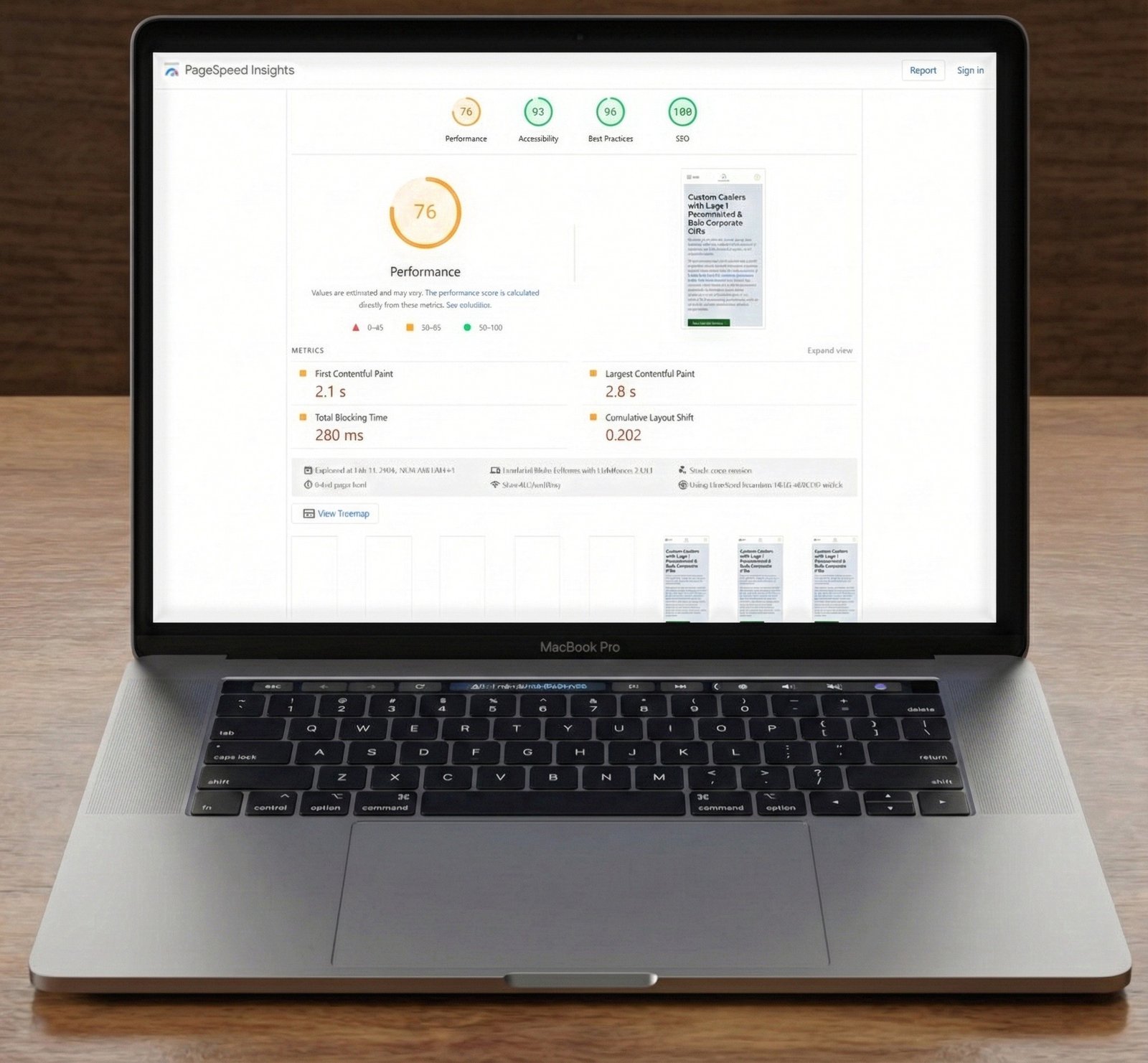
In today’s fast-paced digital world, first impressions are everything. For your website, that often means the hero image – the large, prominent visual that greets visitors at the top of your page. While visually appealing, an unoptimized hero image can significantly hinder your site’s performance, particularly its Largest Contentful Paint (LCP). This crucial metric, a cornerstone of Google’s Core Web Vitals, directly impacts user experience and search engine rankings. If your hero image isn’t loading as a top priority, you’re not just losing milliseconds; you’re potentially losing visitors and conversions.
Why an Unprioritized Hero Image Harms Your Site
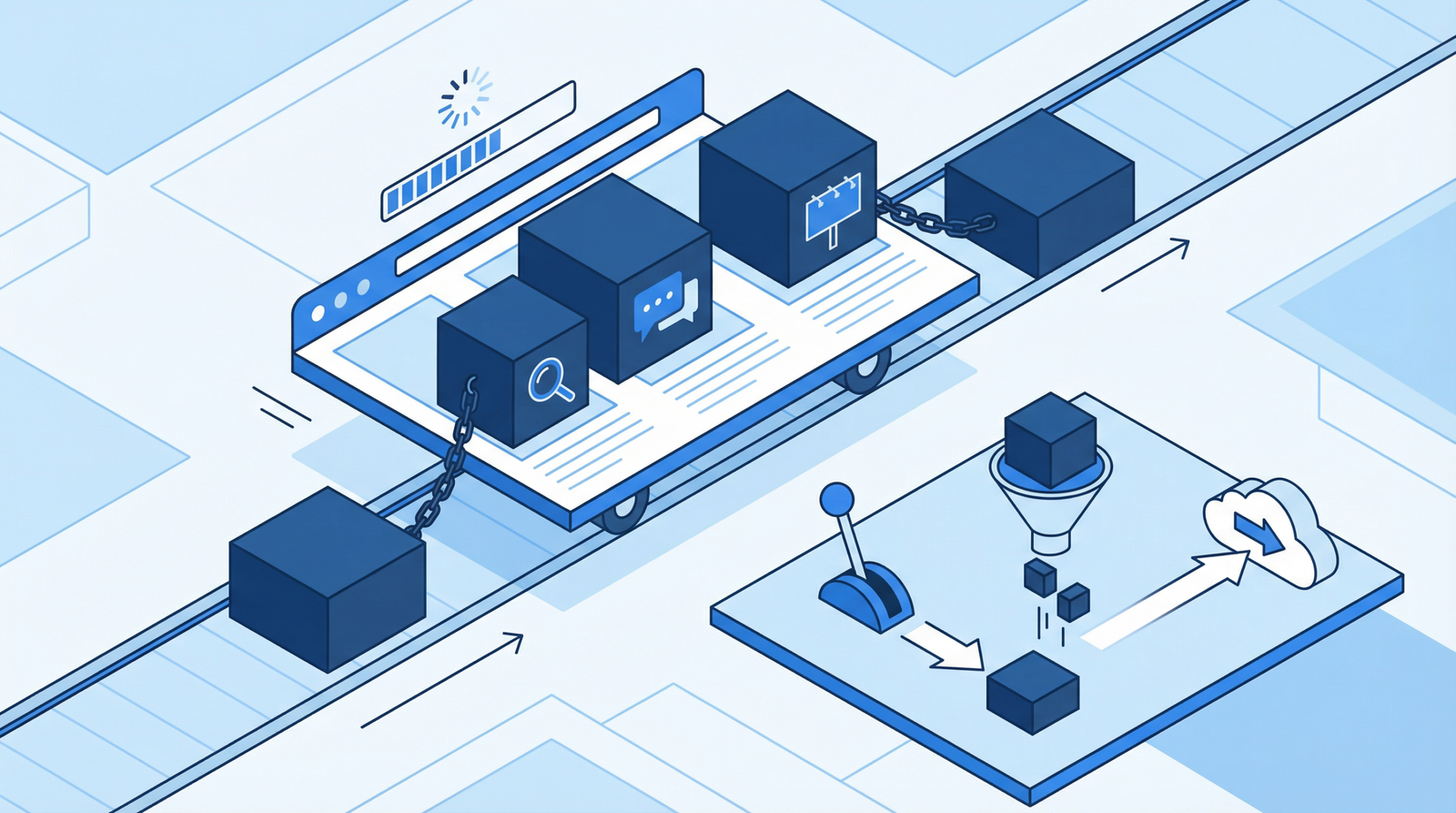
The hero image is frequently the LCP element on a page. When it loads with the same priority as less critical images or other page assets, it creates a bottleneck. Users are left staring at a blank space or a partially rendered layout, leading to frustration and a higher bounce rate. This delay directly translates to:
Poor Core Web Vitals Scores: A high LCP score negatively impacts your overall site health and SEO.
Diminished User Experience: Visitors expect instant gratification. Slow loading of key visual content erodes trust and engagement.
Reduced Conversions: A slow, clunky experience can deter potential customers from exploring further or completing desired actions.
How to Diagnose Hero Image Loading Issues
Identifying if your hero image is a performance bottleneck is straightforward with the right tools:
Chrome DevTools Performance Tab: Open Chrome DevTools (F12 or right-click > Inspect), navigate to the ‘Performance’ tab, and record a page load. Analyze the waterfall chart to pinpoint your LCP element.
Check for Prioritization: Once the LCP element is identified as your hero image, inspect its HTML. Look for attributes like fetchpriority="high" or a corresponding <link rel="preload"> tag in the document’s <head>. The absence of these indicates a lack of explicit prioritization.
Analyze the Loading Waterfall: Observe when the hero image begins downloading relative to other resources. If it’s not among the very first items, it’s likely not being prioritized.
Actionable Steps to Prioritize Your Hero Image
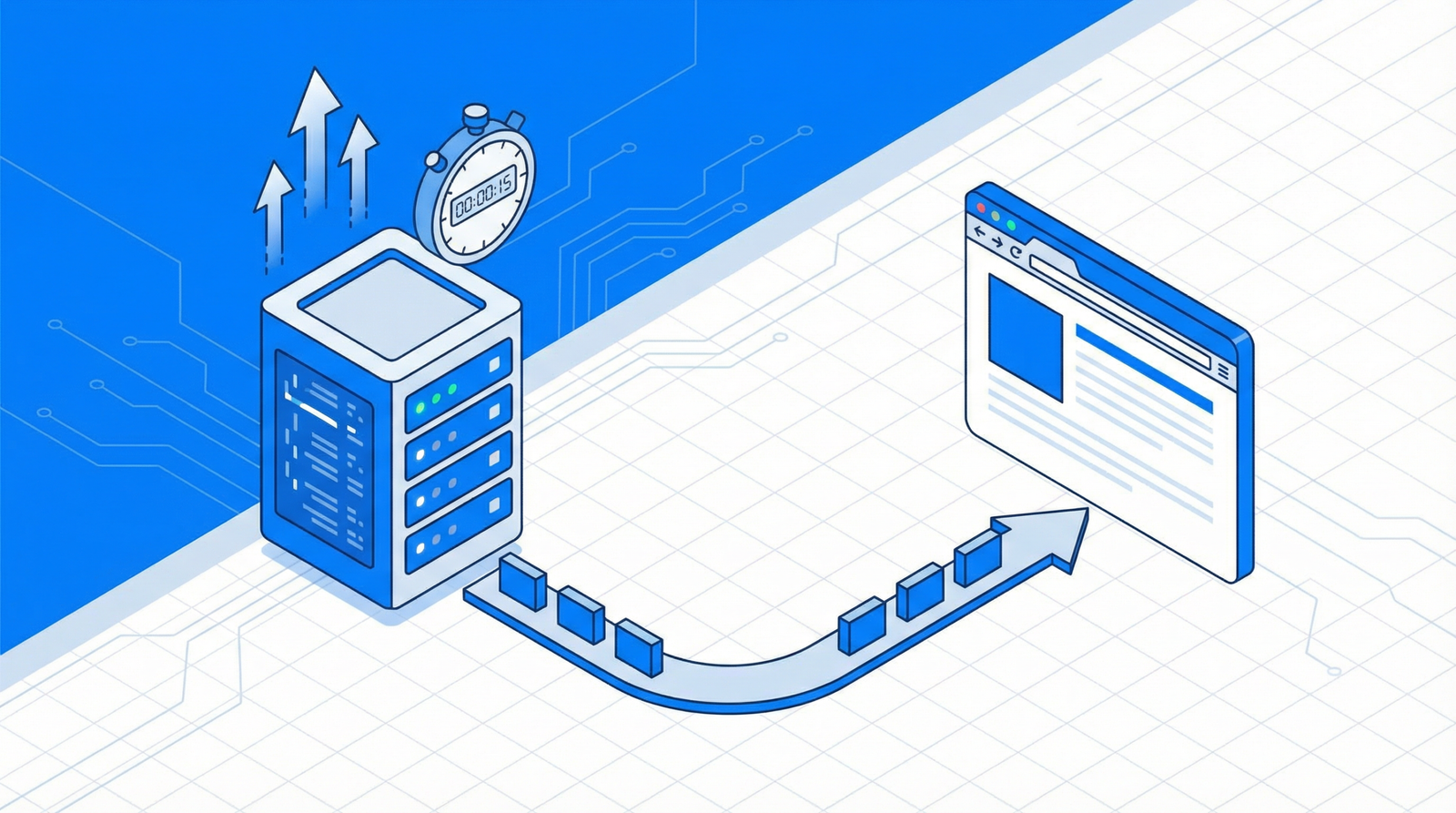
Optimizing your hero image loading involves a combination of HTML attributes and strategic preloading. The goal is to signal to the browser that this image is critical and should be fetched as soon as possible.
1. Utilize fetchpriority="high" (Recommended for 2025/2026)
The fetchpriority="high" attribute is now widely supported and is the most effective way to tell the browser to prioritize an image. Apply it directly to your <img> tag:
This attribute provides a strong hint to the browser, allowing it to optimize resource loading order more effectively.
2. Preload Your Hero Image
Alternatively, or in conjunction with fetchpriority for maximum impact, you can preload your hero image in the <head> of your HTML document. This tells the browser to fetch the image early, even before it encounters the <img> tag in the document body:
Avoid Lazy Loading: Ensure your hero image is explicitly excluded from any lazy loading mechanisms. Lazy loading is beneficial for images below the fold, but detrimental for LCP elements.
Early HTML Placement: The <img> tag for your hero image should appear as early as possible in your HTML structure.
Set Proper Dimensions: Always include width and height attributes on your image tags to prevent layout shifts (CLS) and allow the browser to reserve space for the image before it loads.
Modern Image Formats: Use modern, optimized image formats like WebP or AVIF. These formats offer superior compression without sacrificing quality, leading to smaller file sizes and faster downloads.
WordPress-Specific Implementation
For WordPress users, you can programmatically add preload hints or fetchpriority attributes. Here’s an example of how to preload a hero image specifically for your front page:
function preload_hero_image() {
    if (is_front_page()) {
        echo '<link rel="preload" as="image" href="' . get_template_directory_uri() . '/images/hero.jpg">';
    }
}
add_action('wp_head', 'preload_hero_image');
You can adapt this snippet to dynamically add fetchpriority="high" to your hero image tag using WordPress filters, depending on how your theme renders images.
Conclusion: A Faster Hero, A Better Experience
Prioritizing your hero image is a fundamental step towards achieving excellent Core Web Vitals and delivering a superior user experience. By implementing fetchpriority="high" or preloading, you ensure that the most impactful visual element on your page loads swiftly, reducing LCP, improving engagement, and ultimately contributing to your site’s success. Don’t let a neglected hero image be the villain of your web performance story!